
Wiki | Nexus | Download | Wabbajack Discord | Jackify Issues | Ko-fi
Configure Existing Modlist
Use this workflow if a modlist is already in your Steam library but needs (re)configuring — for example after moving your installation to a new location, or if something went wrong during an earlier configuration.
Step 1: Open Configure Existing Modlist
From the Jackify main menu, select Modlist Tasks, then Configure Existing Modlist (In Steam).
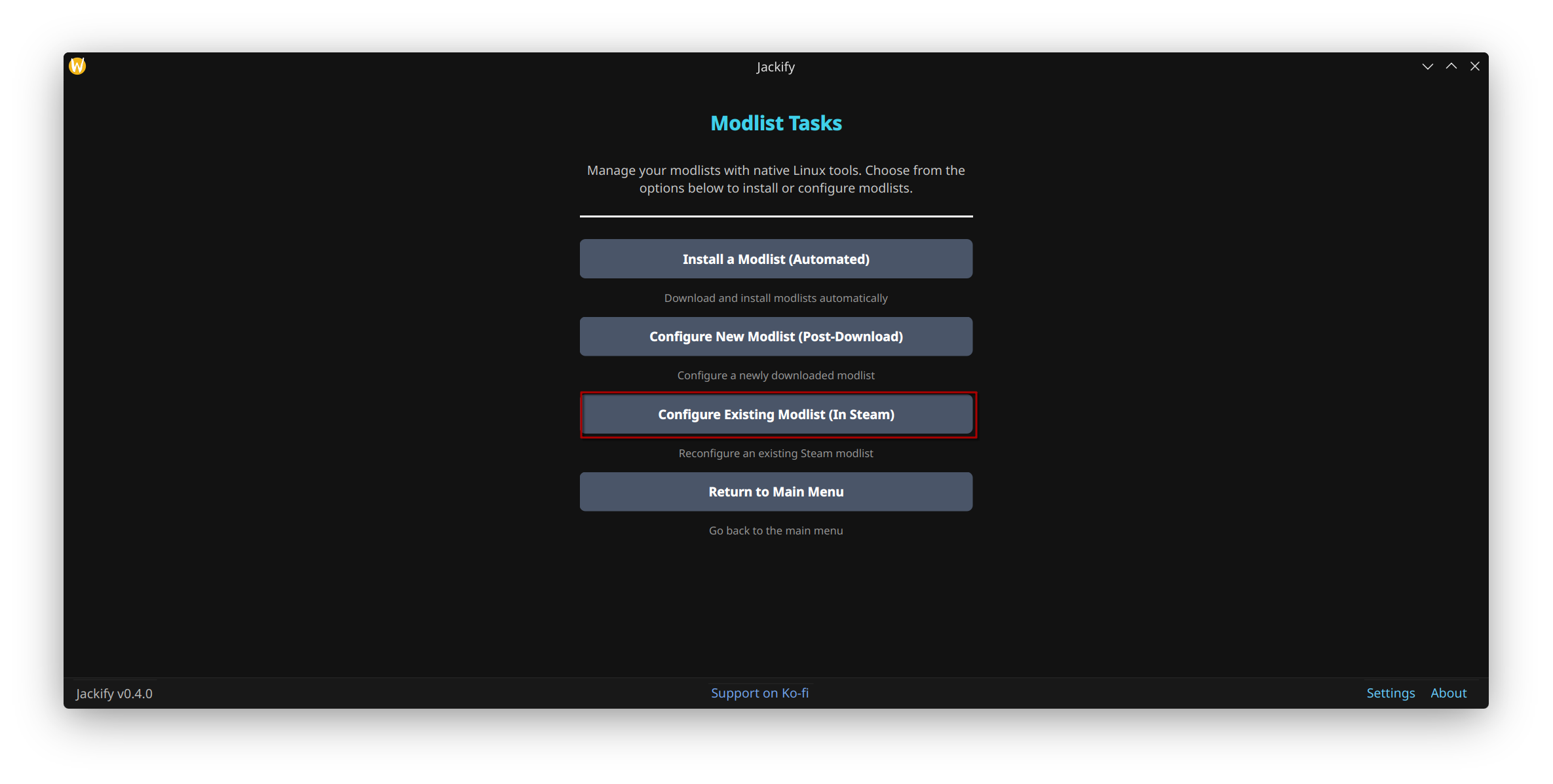
Modlist Tasks menu — select Configure Existing Modlist (In Steam)
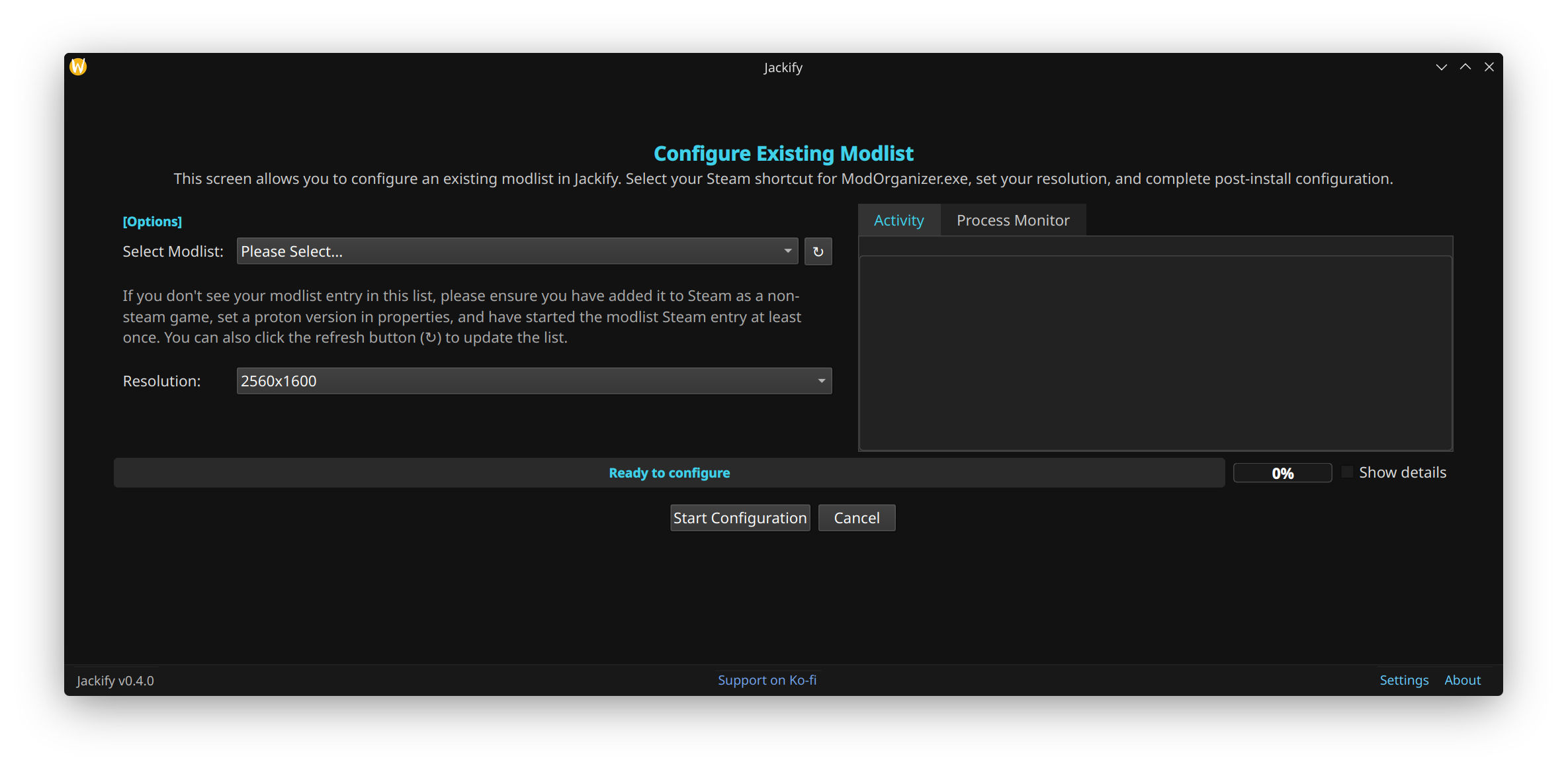
The reconfiguration interface lets you update settings while preserving existing Steam integration
Step 2: Select Your Modlist
Jackify detects existing modlist shortcuts in your Steam library and presents them for selection.
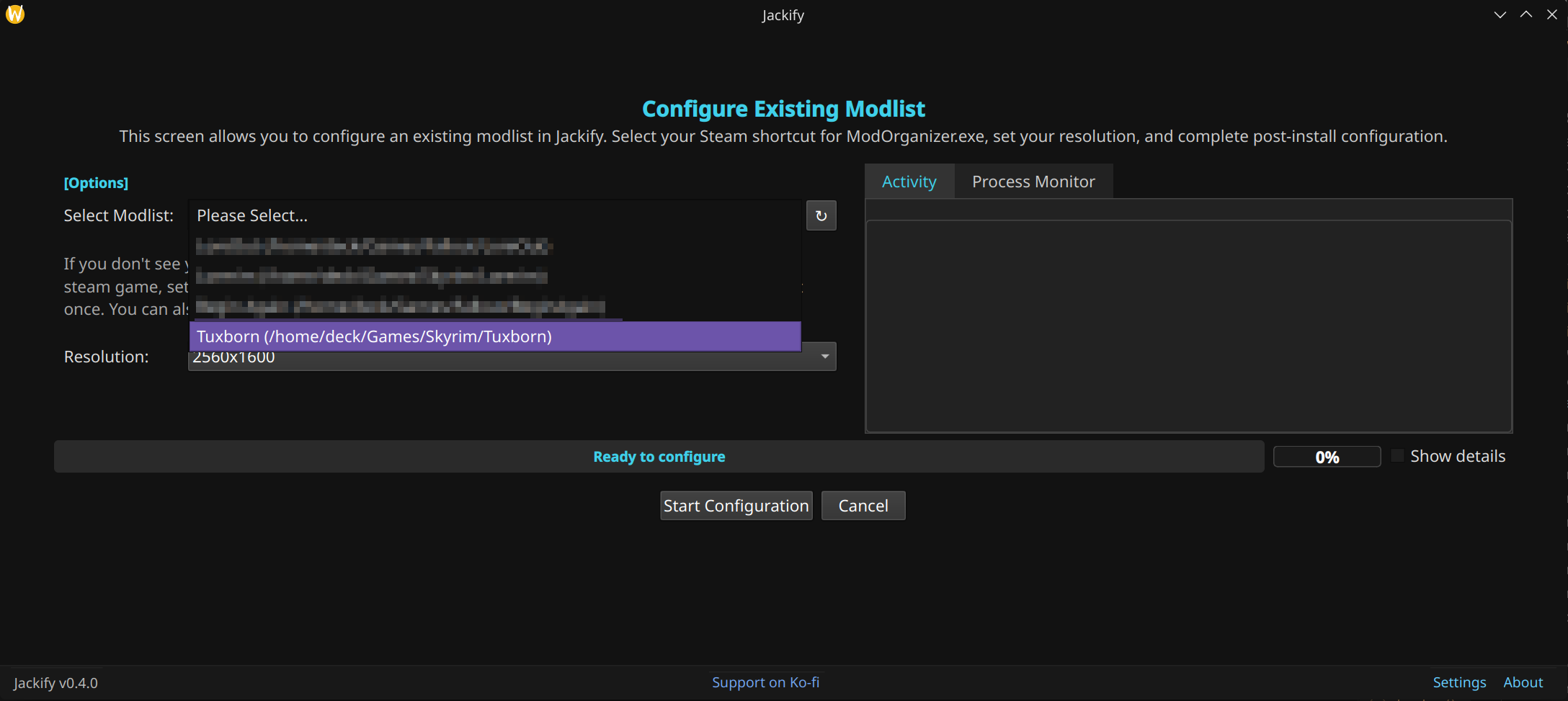
Jackify detects existing modlist shortcuts in Steam
Common reasons to use this workflow:
- Moving a modlist installation to a new location
- Fixing a corrupted or broken Steam shortcut
- Re-applying configuration after a Proton or Steam update
Step 3: Start Configuration
Confirm your settings and click Start Configuration. Jackify will re-apply Steam integration, Proton settings, and launch options.
Back to User Guide | See also: Configure New Modlist