
Wiki | Nexus | Download | Wabbajack Discord | Jackify Issues | Ko-fi
Configure New Modlist (Post-Download)
Note
This guide uses Tuxborn (a Skyrim Special Edition modlist) as a worked example throughout. The steps are identical for any Wabbajack modlist — substitute your modlist name and game wherever Tuxborn and Skyrim appear.
Use this workflow if you have a modlist that was installed with another method (such as Wabbajack on Windows, or following older guides) and want to integrate it properly with Steam on Linux. See Installing a Modlist with Jackify for the full end-to-end guide if you are starting from scratch.
This workflow will:
- Create a proper Steam shortcut
- Configure Proton settings
- Set up launch options
- Install any missing compatibility components
Step 1: Open Configure New Modlist
From the Jackify main menu, select Modlist Tasks, then Configure New Modlist (Post-Download).
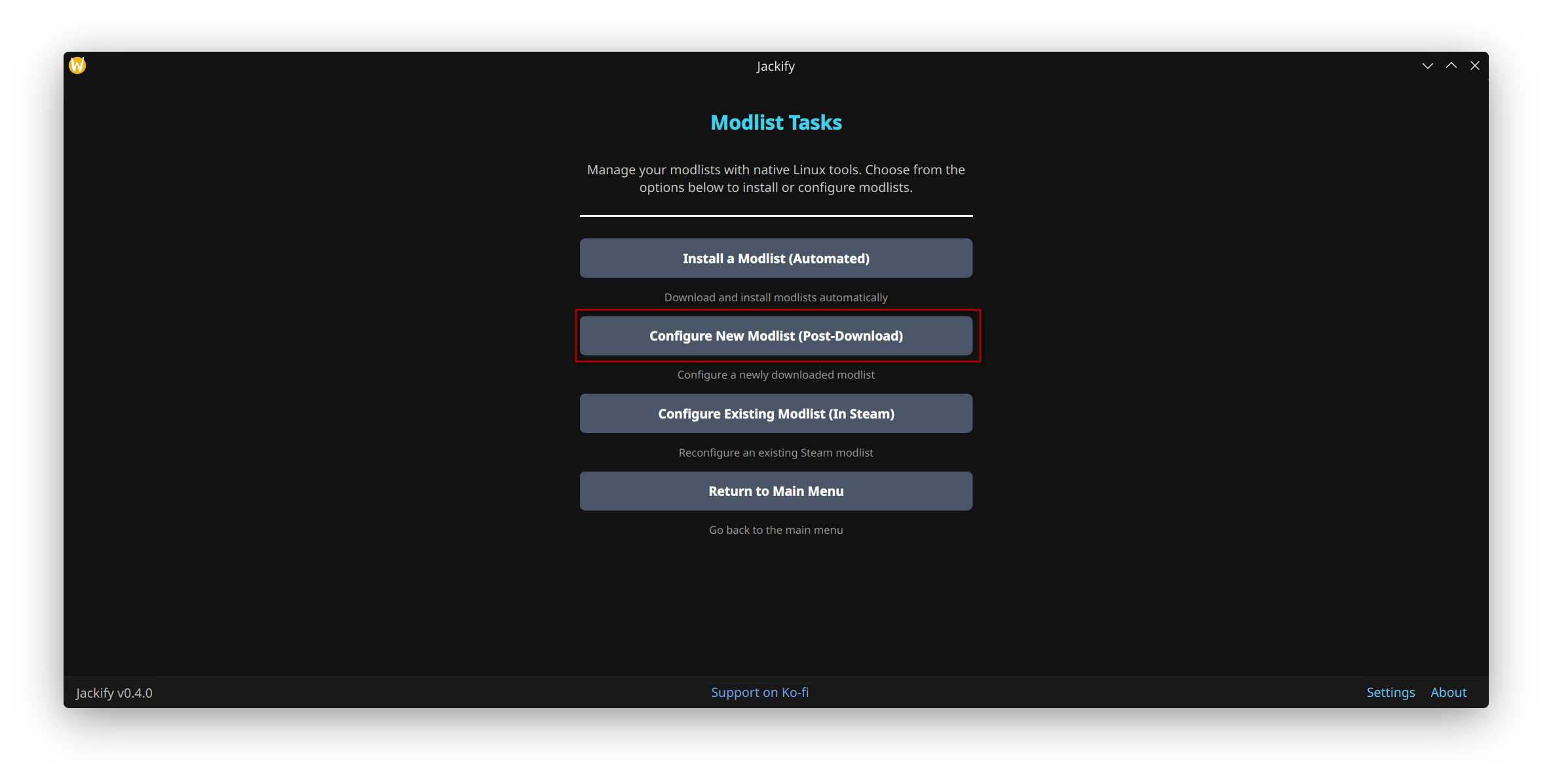
Modlist Tasks menu — select Configure New Modlist (Post-Download)
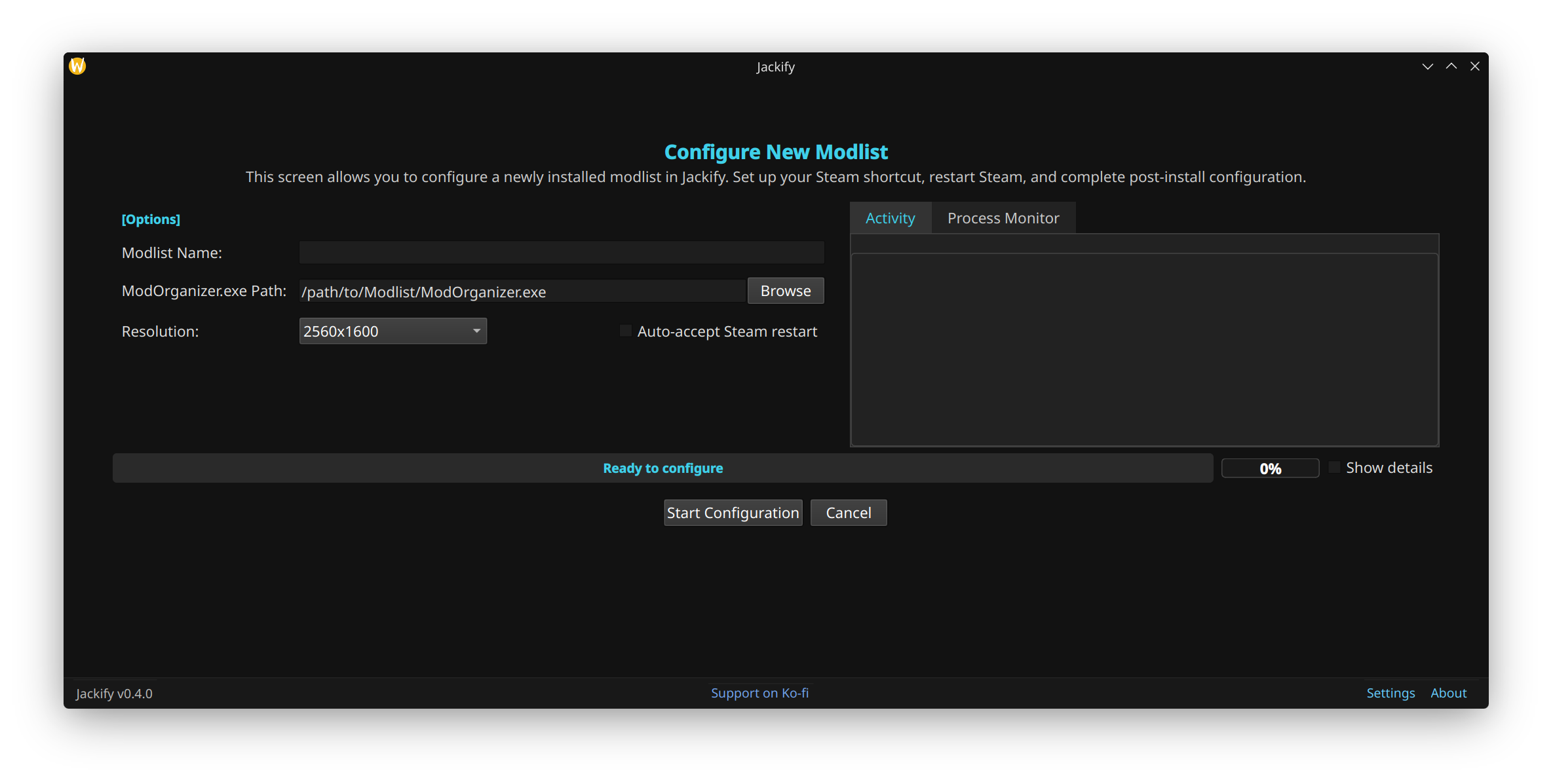
The configuration screen for bringing an existing modlist installation into Steam
Step 2: Locate Your ModOrganizer.exe
Browse to your existing ModOrganizer.exe file. This tells Jackify where your modlist is installed.
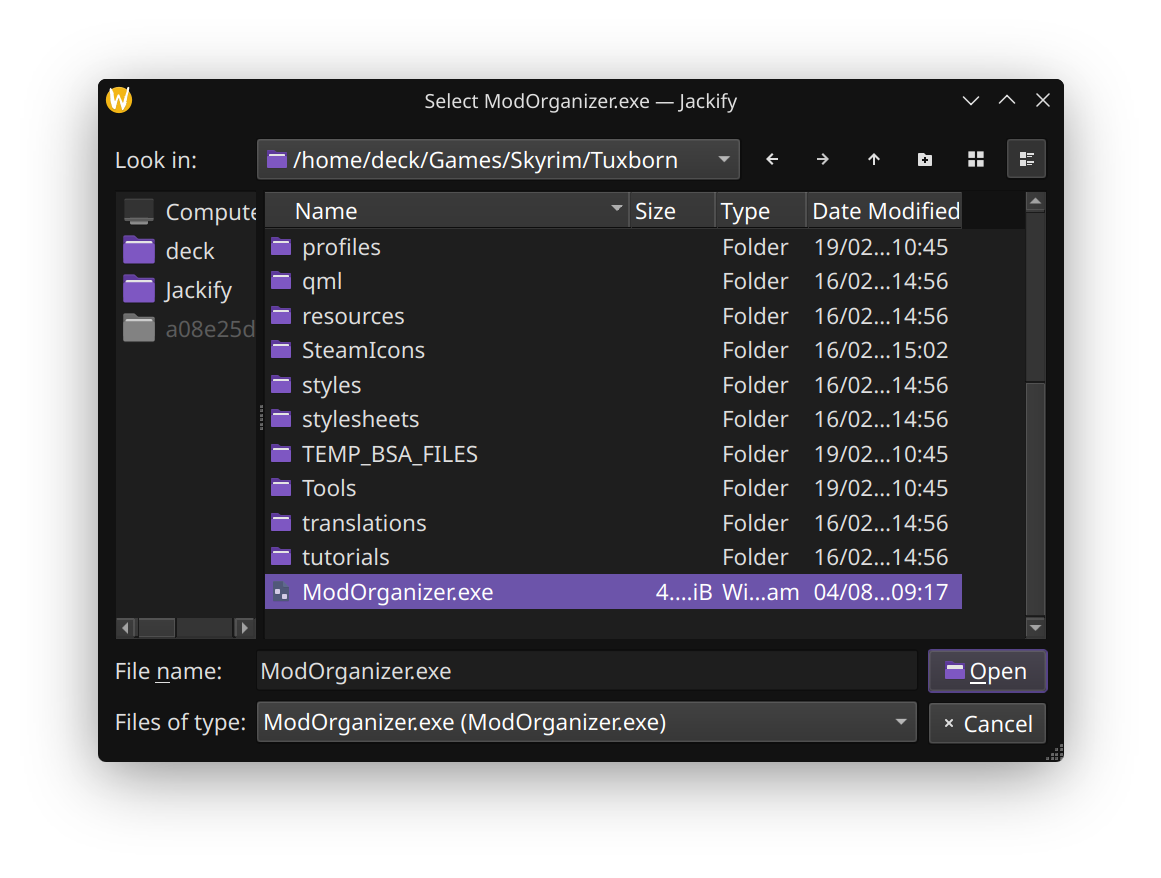
Browse to locate your ModOrganizer.exe — Jackify will analyse the installation and configure Steam integration automatically
Jackify analyses:
- Game type and version
- Required compatibility components
- Steam integration requirements
Step 3: Set Name and Resolution
Enter a name for the modlist and select your display resolution.
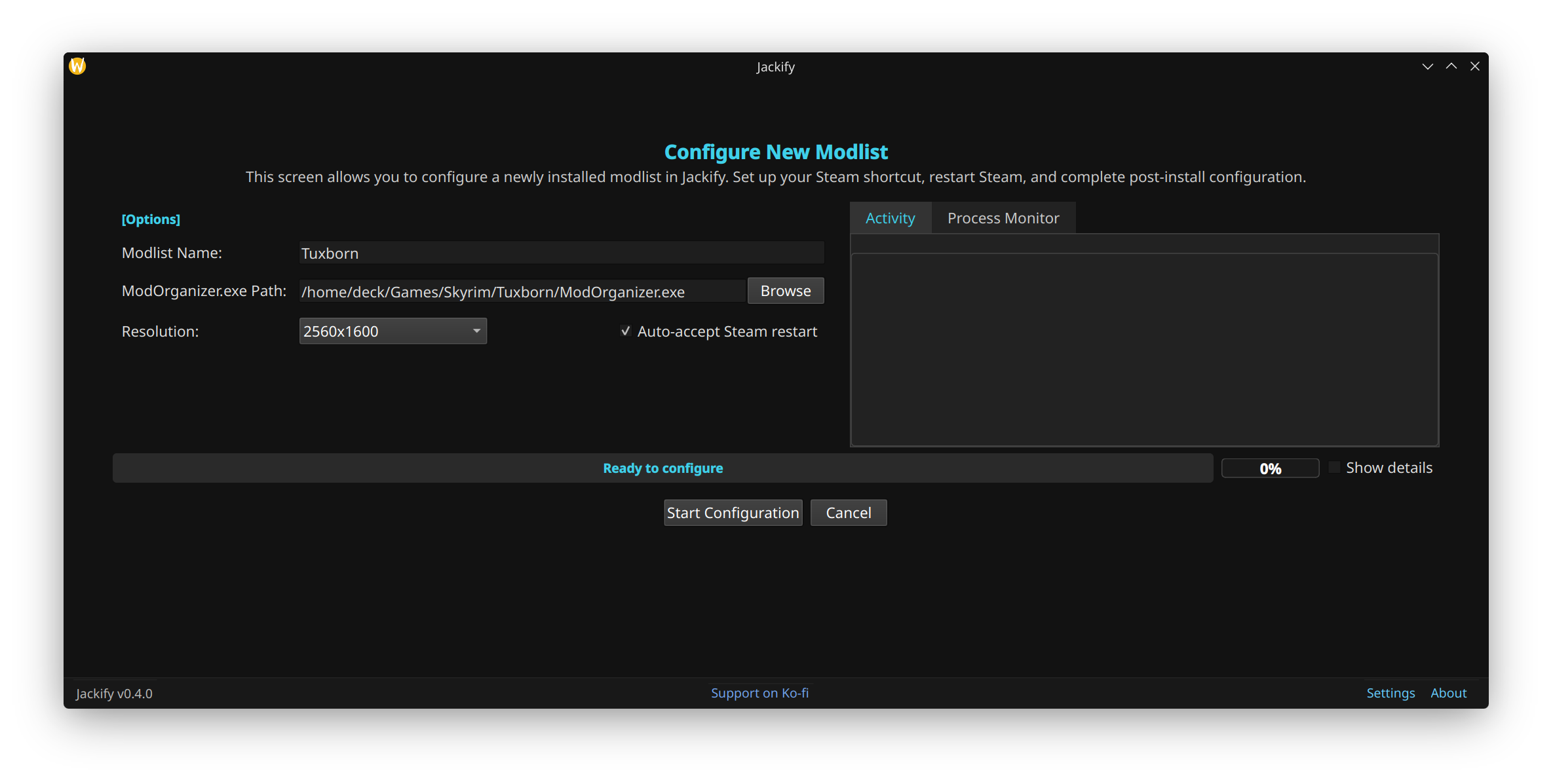
Name, path and resolution filled in — ready to start configuration
Step 4: Start Configuration
Click Start Configuration. Jackify will:
- Create a Steam shortcut
- Configure Proton settings
- Set up launch options
- Install any missing compatibility components
Once complete, open Steam and click Play to launch Mod Organizer 2, then run the game from there.
Back to User Guide | See also: Configure Existing Modlist