
Installing Additional Tools
Introduction
This guide covers installation of additional tools that enhance compatibility and functionality for modlists on Linux and Steam Deck. These tools are used by both Jackify's automated processes and post-install phase of a Wabbajack installation.
Tools covered in this guide:
- Protontricks: Tool for managing Proton prefixes — required regardless of which Proton version you use
- GE-Proton: Alternative Proton builds with better performance and ENB compatibility
Installing Protontricks
Protontricks is a tool we will use to manage Wine components (like vcrun2022, dotnet, etc.) in Proton prefixes. It is required for modlist configuration regardless of which Proton version you use.
Why Protontricks?
Protontricks allows you to:
- Install Wine components (DLLs, runtimes) in Proton prefixes
- Apply registry fixes for .NET Framework compatibility
- Manage and troubleshoot Proton prefix configurations
Required version: 1.11.0 or newer
Installation
Steam Deck: Discover Store
Search for Protontricks in the Discover Store and install it from there. No terminal needed.
All Distributions: Flatpak
Flatpak is recommended for all distributions — provides the latest version with universal compatibility.
flatpak install --user flathub com.github.Matoking.protontricks
Launch:
flatpak run com.github.Matoking.protontricks
Grant Steam access (if using Flatpak Steam):
flatpak override --user --filesystem=~/.var/app/com.valvesoftware.Steam com.github.Matoking.protontricks
Add alias for easier usage (optional but recommended):
To avoid typing the full flatpak run command every time, add an alias to your shell configuration:
For Bash (most Linux distributions):
echo 'alias protontricks="flatpak run com.github.Matoking.protontricks"' >> ~/.bashrc
source ~/.bashrc
For Zsh (some distributions):
echo 'alias protontricks="flatpak run com.github.Matoking.protontricks"' >> ~/.zshrc
source ~/.zshrc
For Fish:
echo 'alias protontricks="flatpak run com.github.Matoking.protontricks"' >> ~/.config/fish/config.fish
source ~/.config/fish/config.fish
For Steam Deck (uses Bash):
echo 'alias protontricks="flatpak run com.github.Matoking.protontricks"' >> ~/.bashrc
source ~/.bashrc
After adding the alias, you can simply use protontricks instead of the full command:
protontricks -l
Alternative: Distribution Packages
Distribution packages may be older versions. Flatpak is recommended for most users.
Arch/Manjaro:
sudo pacman -S protontricks
Fedora/Nobara:
sudo dnf install protontricks
Ubuntu/Debian (though I recommend you use the flatpack version):
sudo apt install protontricks
Verifying Protontricks Installation
Check that Protontricks is installed and working:
protontricks --version
You should see version 1.11.0 or newer.
List available Proton prefixes:
protontricks -l
You should see a list of Steam games and non-Steam shortcuts with their AppIDs.
Protontricks Troubleshooting
Command not found
- Flatpak: Use full command
flatpak run com.github.Matoking.protontricks - System package: Ensure protontricks is in your PATH
No Steam games found
- Ensure Steam is installed and has launched at least once
- For Flatpak Steam, grant filesystem permissions (see Flatpak installation section above)
- Check Steam library paths are accessible
Winetricks fails to download components
- Check internet connection
- Try updating protontricks:
flatpak updateor your package manager's update command - Some components may require accepting licenses - follow prompts
Installing GE-Proton
While Steam provides official Proton versions, alternative builds like GE-Proton (GloriousEggroll) often provide better compatibility and performance for modded games. GE-Proton is highly recommended for use with Jackify and modlists, especially those using ENB.
Why GE-Proton?
GE-Proton (Proton-GE) is a community build of Proton with additional patches and features:
- Better compatibility with modded games and ENB
- Includes fixes not yet in official Proton releases
- Recommended for Skyrim, Fallout, and other Bethesda modlists
- Required for ENB support with Proton 10+
Recommended version: GE-Proton 10-14 (Specifically 10-14, anything newer than this breaks ENB compatibility)
Method 1: ProtonPlus
ProtonPlus is a graphical tool for managing Proton and compatibility tool versions, with a clean interface and broad distribution support. Install it via Flatpak (available in the Discover Store on Steam Deck) or your distribution's package manager.
Installing GE-Proton
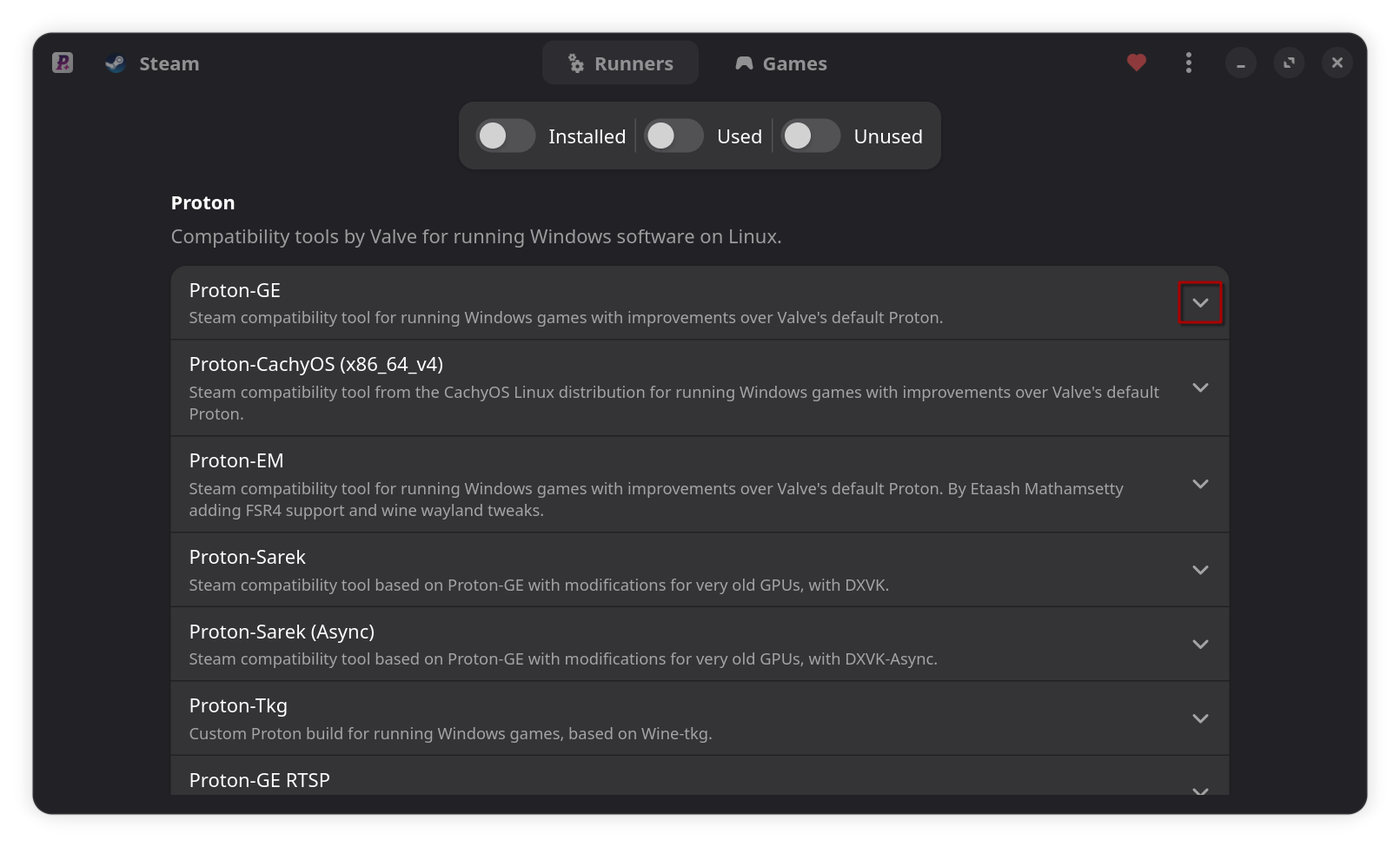
- Install and launch ProtonPlus — available via Flatpak (search for it in the Discover Store on Steam Deck), your distribution's package manager, or via another method. See the ProtonPlus GitHub for all options.
Screenshot: ProtonPlus main window
-
Navigate to the "Runners" tab
-
Find "Proton-GE" in the list of available tools
-
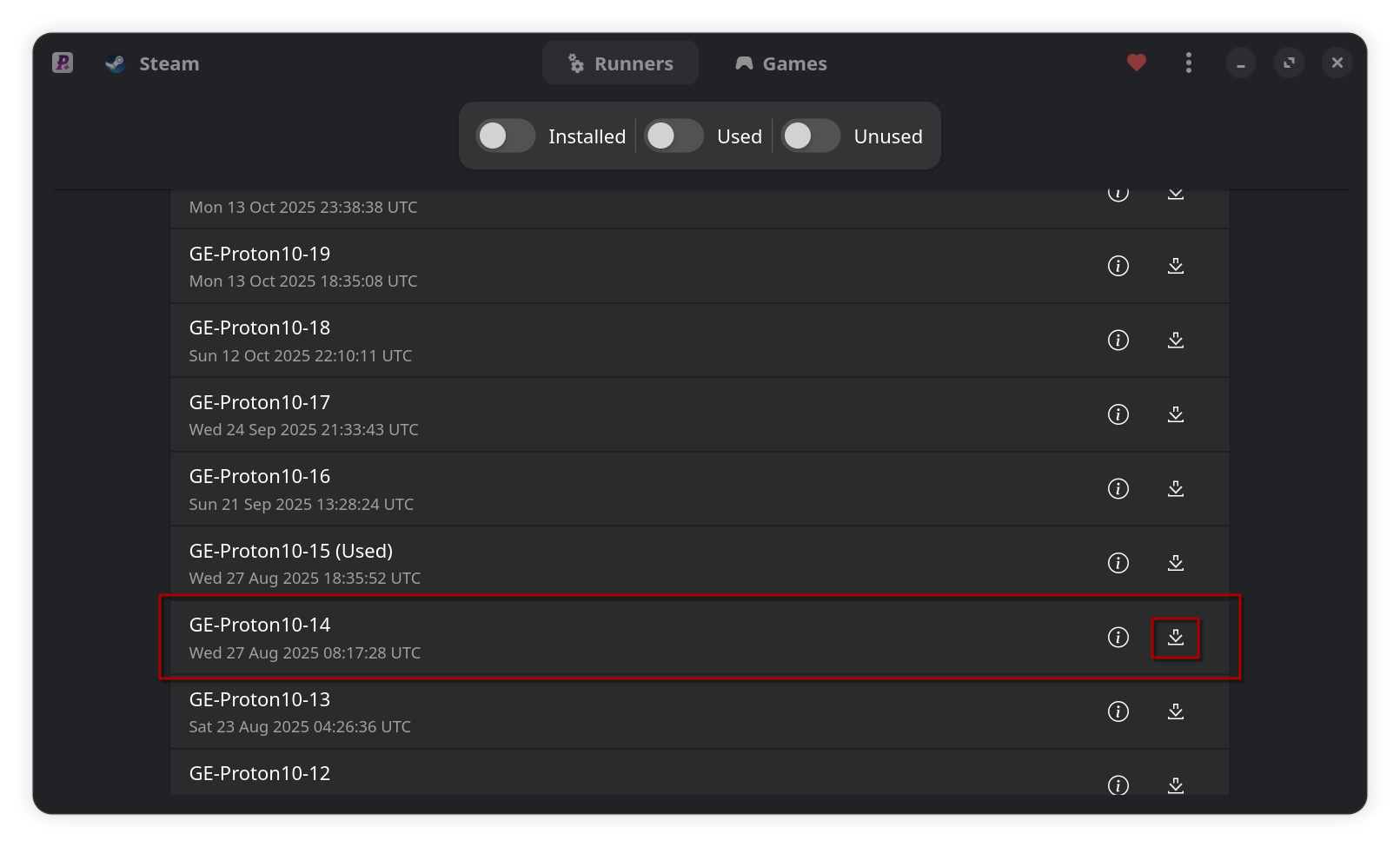
Select and install GE-Proton 10-14 — this is the recommended version for modlists. If your modlist uses ENB, do not install a newer version as it will break ENB compatibility
Screenshot: ProtonPlus — GE-Proton selected for installation
-
Wait for installation to complete
-
Restart Steam for the new version to appear and be available to use in Jackify
-
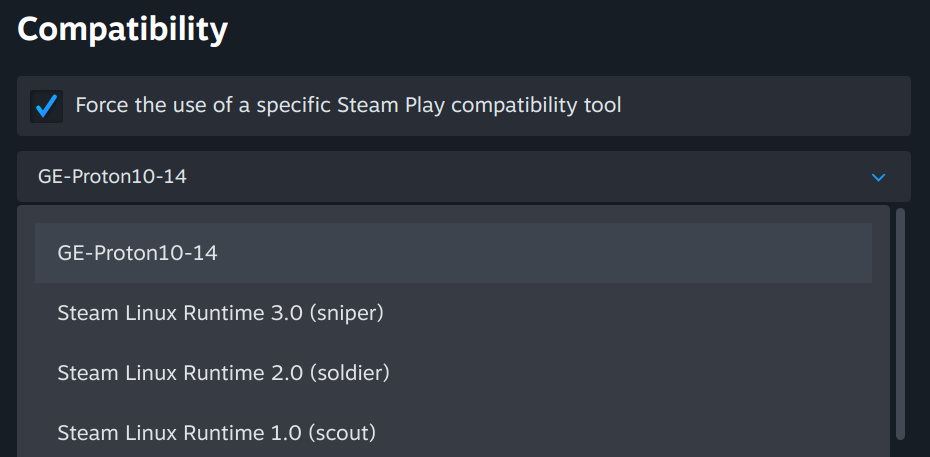
Verify installation: Open Steam, go to any game's Properties > Compatibility, and you should see the new GE-Proton version in the dropdown
Screenshot: Steam game Properties — Compatibility tab showing GE-Proton
Method 2: ProtonUp-Qt
ProtonUp-Qt is an alternative graphical tool for managing Proton versions. Install it via Flatpak (available in the Discover Store on Steam Deck) or your distribution's package manager.
Installing GE-Proton
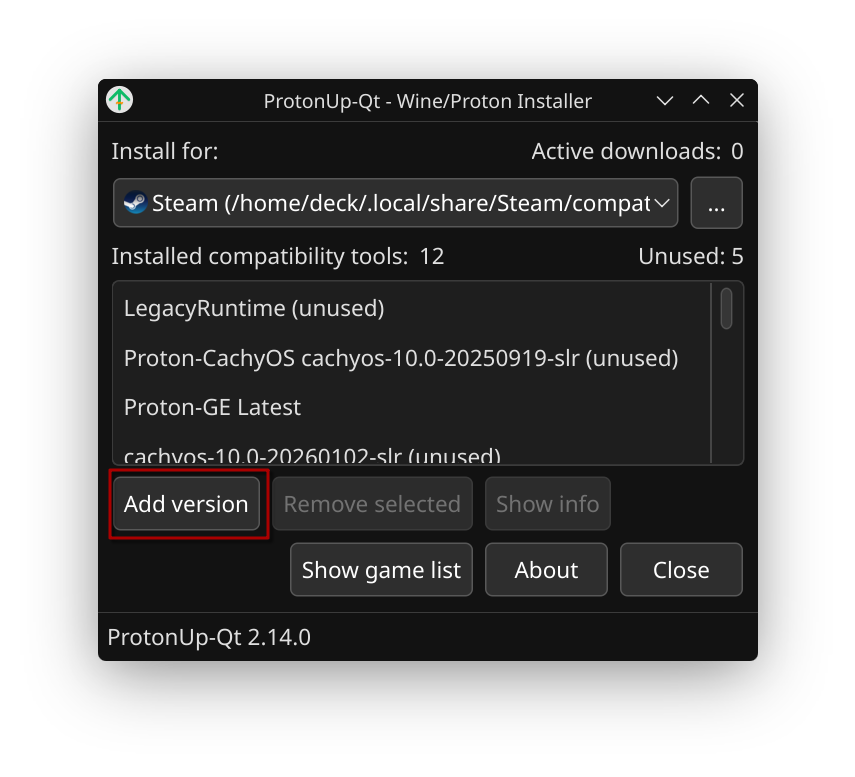
- Install and launch ProtonUp-Qt — available via Flatpak (search for it in the Discover Store on Steam Deck), your distribution's package manager, or via another method. See the ProtonUp-Qt GitHub for all options.
Screenshot: ProtonUp-Qt main window
-
Select "Add version"
-
Configure installation:
- Compatibility tool: Select "GE-Proton"
- Version: Select and install GE-Proton 10-14 — this is the recommended version for modlists. If your modlist uses ENB, do not install a newer version as it will break ENB compatibility
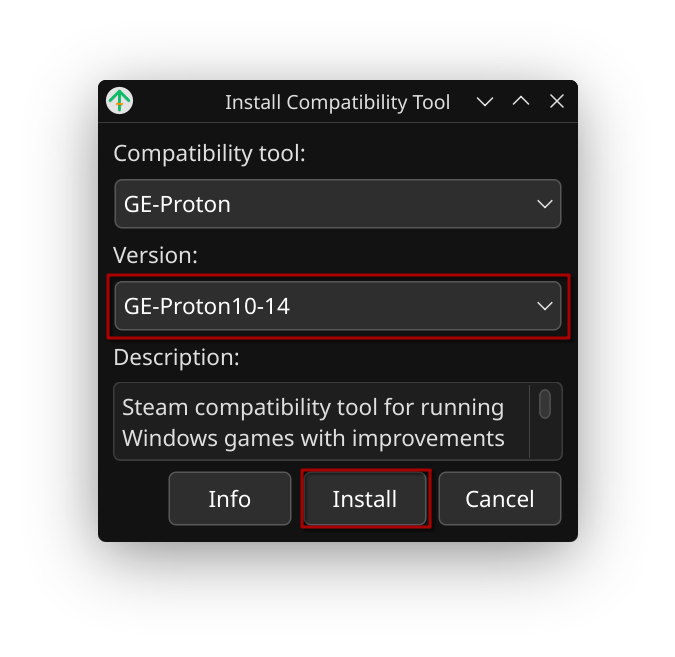
Screenshot: ProtonUp-Qt — version selection dialog
-
Click "Install" and wait for the download to complete.
-
Restart Steam for the new version to appear and be available to use in Jackify
-
Verify installation: Open Steam, go to any game's Properties > Compatibility, and you should see the new GE-Proton version in the dropdown
Screenshot: Steam game Properties — Compatibility tab showing GE-Proton
Verifying GE-Proton Installation
After installing GE-Proton with any method:
-
Restart Steam (if not already done)
-
Right-click any game in your Steam library > Properties
-
Go to Compatibility tab
-
Check "Force the use of a specific Steam Play compatibility tool"
-
Open the dropdown - you should see your newly installed GE-Proton version
Manual GE-Proton Installation (Advanced)
If you prefer manual installation or the above methods don't work:
-
Download GE-Proton from GitHub Releases
-
Extract to compatibilitytools.d:
mkdir -p ~/.steam/steam/compatibilitytools.d tar -xf GE-Proton*.tar.gz -C ~/.steam/steam/compatibilitytools.d/ -
For Flatpak Steam:
mkdir -p ~/.var/app/com.valvesoftware.Steam/data/Steam/compatibilitytools.d tar -xf GE-Proton*.tar.gz -C ~/.var/app/com.valvesoftware.Steam/data/Steam/compatibilitytools.d/ -
Restart Steam
GE-Proton Troubleshooting
GE-Proton doesn't appear in Steam
- Ensure you restarted Steam completely (not just closed the window)
- Check installation path is correct:
- Native Steam:
~/.steam/steam/compatibilitytools.d/ - Flatpak Steam:
~/.var/app/com.valvesoftware.Steam/data/Steam/compatibilitytools.d/
- Native Steam:
- Verify the extracted folder name matches the version (e.g.,
GE-Proton9-20)
ProtonUp-Qt can't find Steam
- If using Flatpak Steam, grant ProtonUp-Qt filesystem permissions:
flatpak override --user --filesystem=~/.var/app/com.valvesoftware.Steam net.davidotek.pupgui2
Recommended GE-Proton Versions
For modlists and ENB compatibility:
- GE-Proton 10-14 (recommended maximum - newer versions break ENB)
- GE-Proton 9-27 (alternative for ENB modlists, but may cause other issues)
- Versions newer than GE-Proton 10-14 will cause endless black screen with ENB
External Links
| Resource | URL | Description |
|---|---|---|
| GE-Proton Releases | https://github.com/GloriousEggroll/proton-ge-custom/releases | Official GE-Proton downloads |
| ProtonUp-Qt | https://github.com/DavidoTek/ProtonUp-Qt | ProtonUp-Qt project page |
| ProtonPlus | https://github.com/Vysp3r/ProtonPlus | ProtonPlus project page |
| Protontricks | https://github.com/Matoking/protontricks | Protontricks project page |
| ProtonDB | https://www.protondb.com/ | Game compatibility database |
This guide is referenced by: Installing a Modlist with Jackify, Installing a Modlist with Wabbajack, and Manual Installation Guides.