
Installing a Modlist with Wabbajack
Note
This guide uses Tuxborn (a Skyrim Special Edition modlist) as a worked example throughout. The steps are identical for any Wabbajack modlist — substitute your modlist name and game wherever Tuxborn and Skyrim appear.
Important
A successful installation does not guarantee the modlist will work on your system. Linux modding involves too many hardware, driver, and system-specific variables for any guarantee to be made. If something does not work after a successful install, seek help in #unofficial-linux-help on the Wabbajack Discord.
Introduction
This guide covers installing a Wabbajack modlist on Linux. The workflow is:
- Download Jackify — used to install and configure Wabbajack on Linux
- Install Wabbajack via Jackify — automated setup of Wabbajack under Proton
- Use Wabbajack — download and install the modlist (manual downloads for non-Premium)
- Configure with Jackify — automated post-install configuration (Steam shortcut, Proton, Wine components)
Prerequisites
- Linux system (Steam Deck or desktop Linux)
- Steam installed and logged in
- Protontricks — required for modlist configuration
- See Installing Protontricks for installation instructions
- Proton GE 10-14 (highly recommended, maximum for ENB compatibility)
- See Installing GE-Proton for installation instructions
- Alternatively, Proton 10 or Proton Experimental will work for non-ENB modlists
- Nexus Mods account (Premium not required)
- Sufficient disk space for the modlist
- 7-Zip (for AppImage extraction)
- FUSE (pre-installed on most distributions)
- Ubuntu/Debian-based distros only (Ubuntu, Kubuntu, Linux Mint, Pop!_OS, Zorin OS, elementary OS, and others): Qt platform plugin library
sudo apt install libxcb-cursor-dev
Step 1: Download and Extract Jackify
- Download Jackify from Nexus Mods
- Extract the AppImage from the 7z archive:
7z x Jackify.7z - Make it executable:
chmod +x Jackify.AppImage
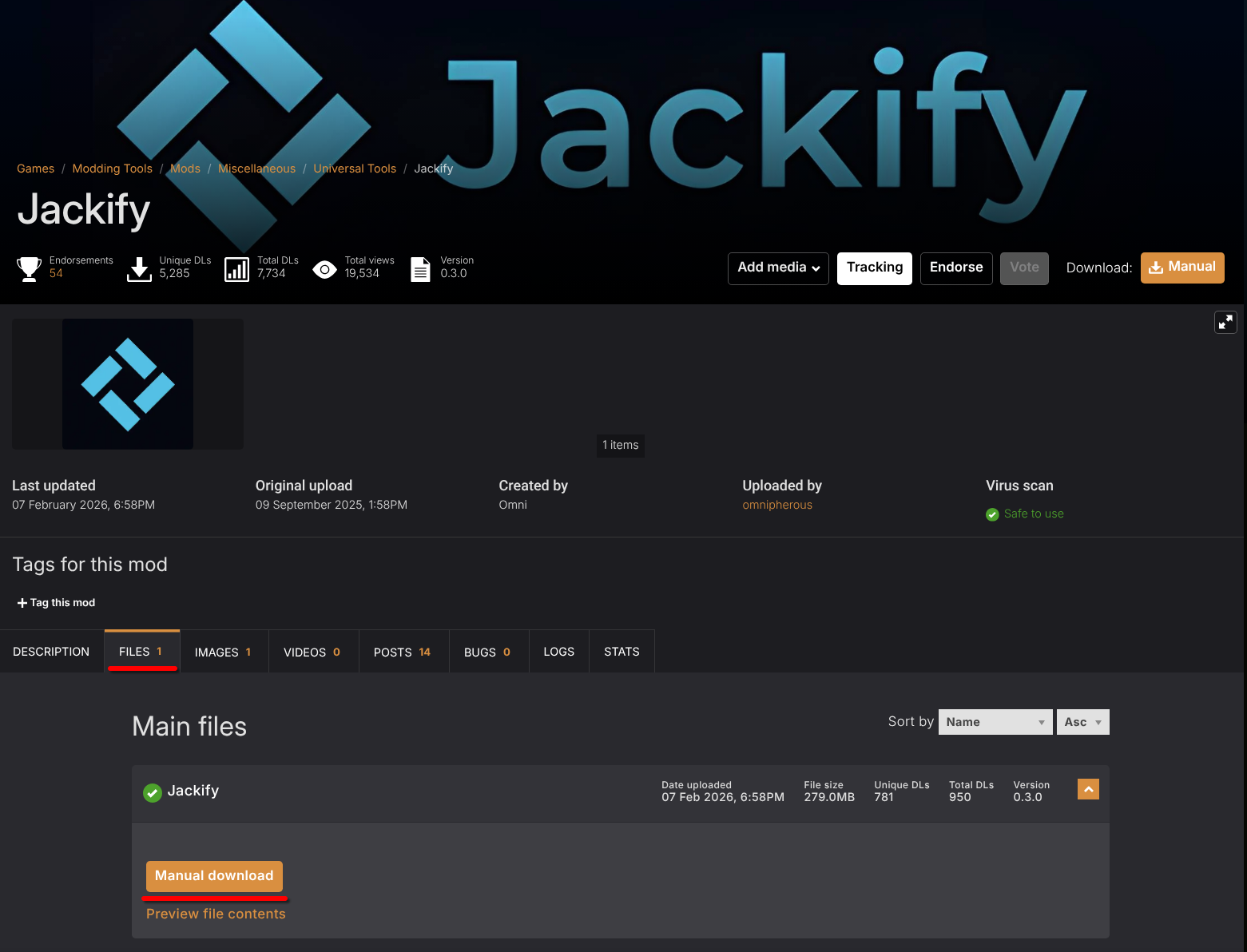
Screenshot: Jackify on Nexus Mods
Step 2: Install Wabbajack via Jackify
Jackify automates the entire Wabbajack setup process on Linux.
-
Launch Jackify by either double-clicking the AppImage, or by running in a konsole/terminal:
./Jackify.AppImage -
From the main menu, click "Additional Tasks"
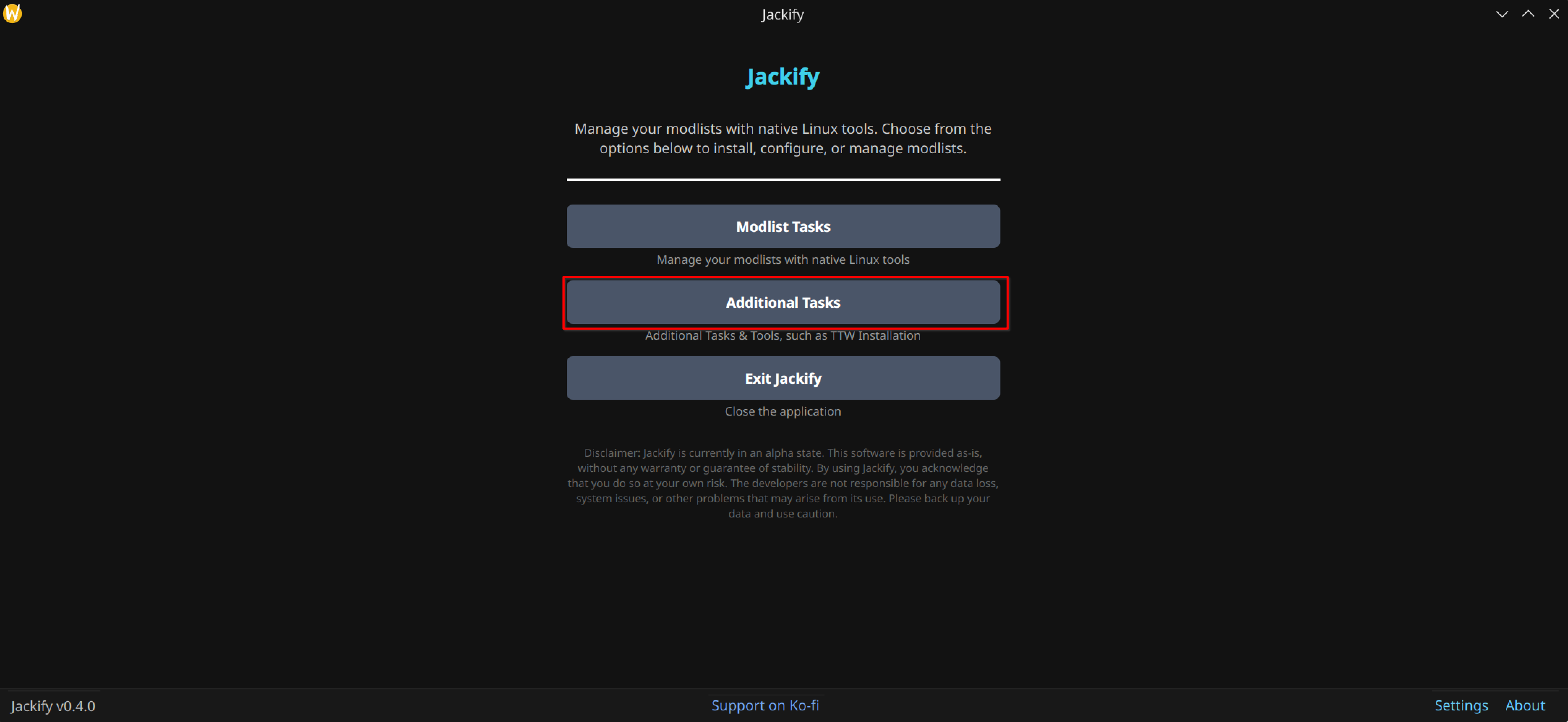
Screenshot: Jackify main menu — Additional Tasks option
- Click "Install Wabbajack"
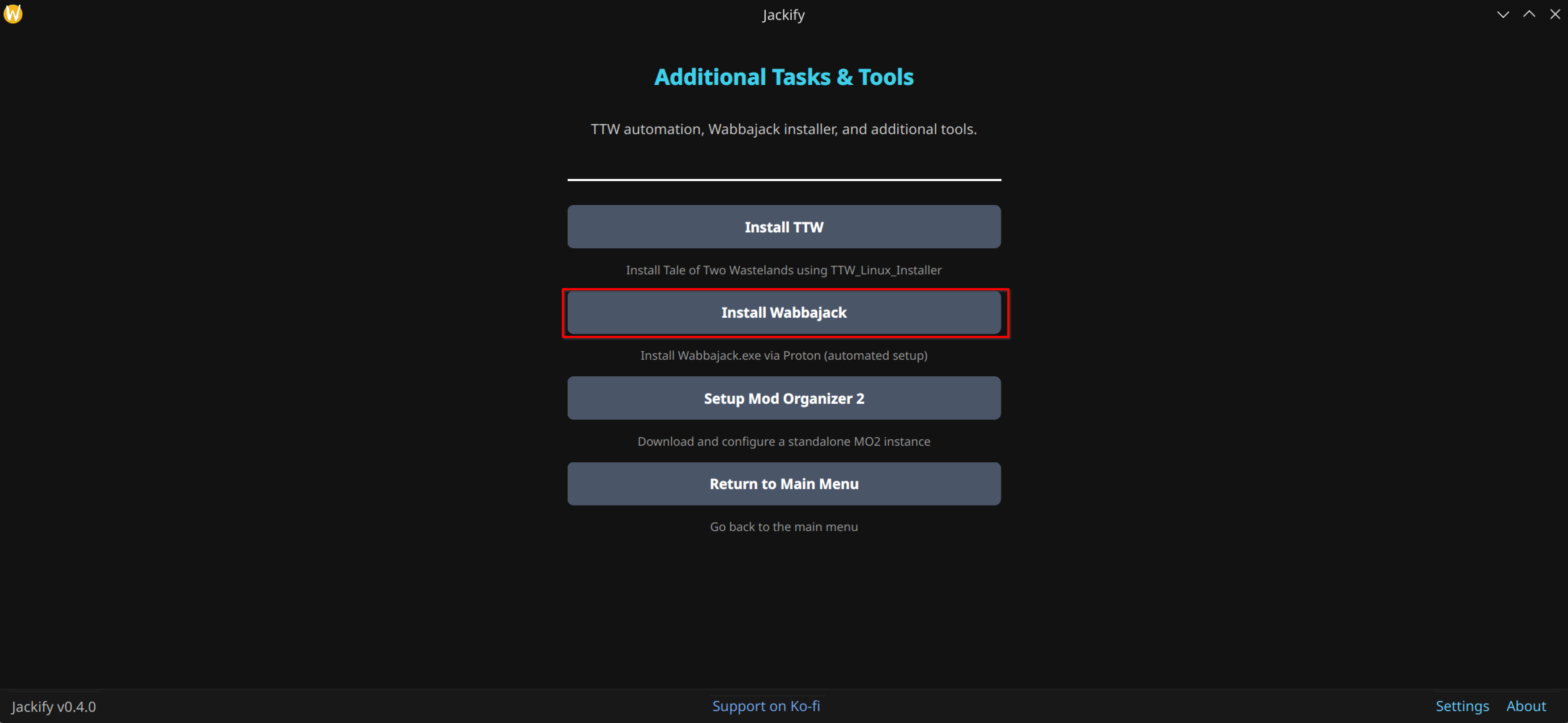
Screenshot: Additional Tasks menu — Install Wabbajack option
- Configure the installation:
- Set the installation directory (default:
~/Games/Wabbajack) - Set a shortcut name (default: "Wabbajack")
- Set the installation directory (default:
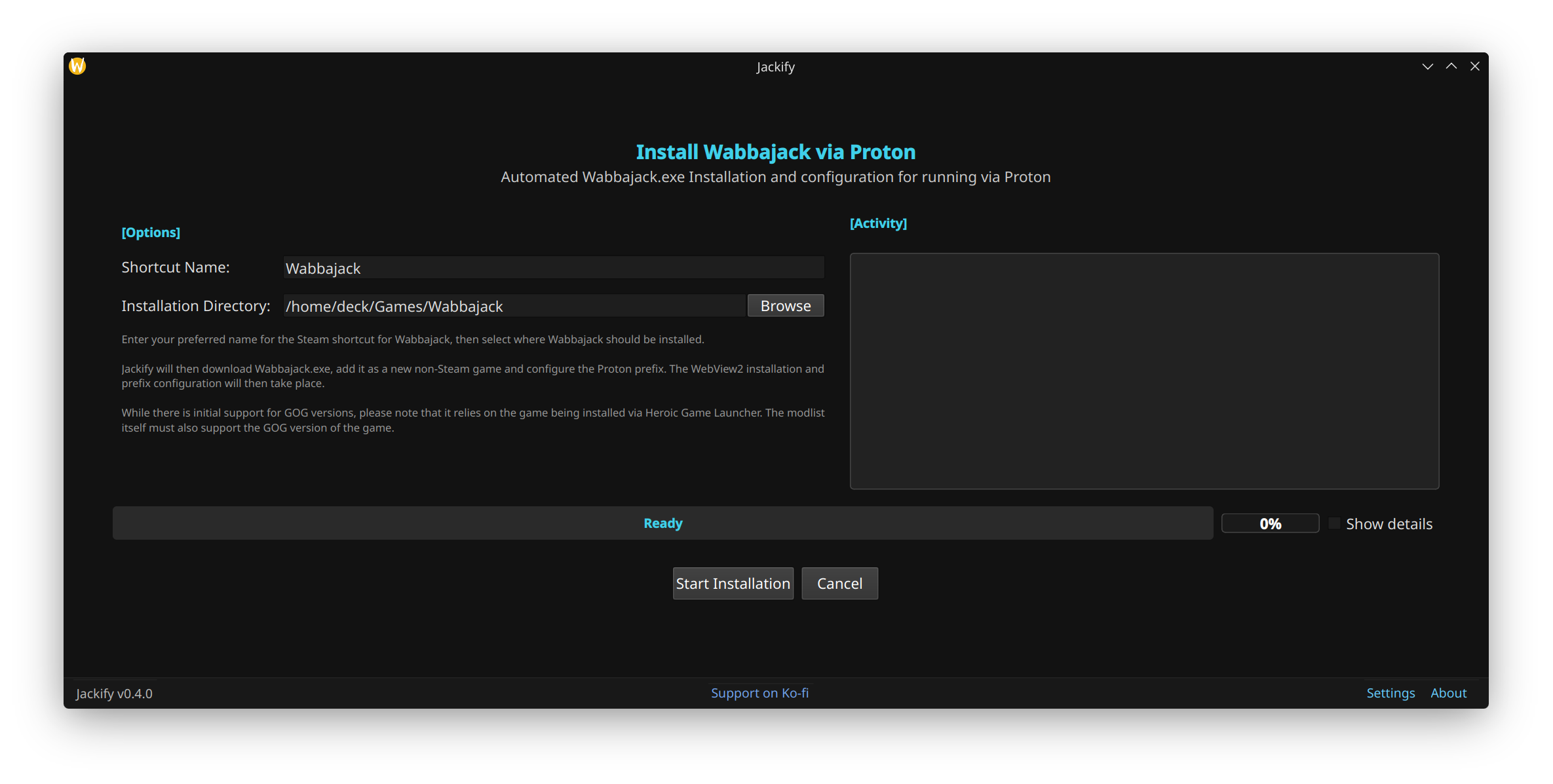
Screenshot: Wabbajack installer configuration
- Click "Start Installation"
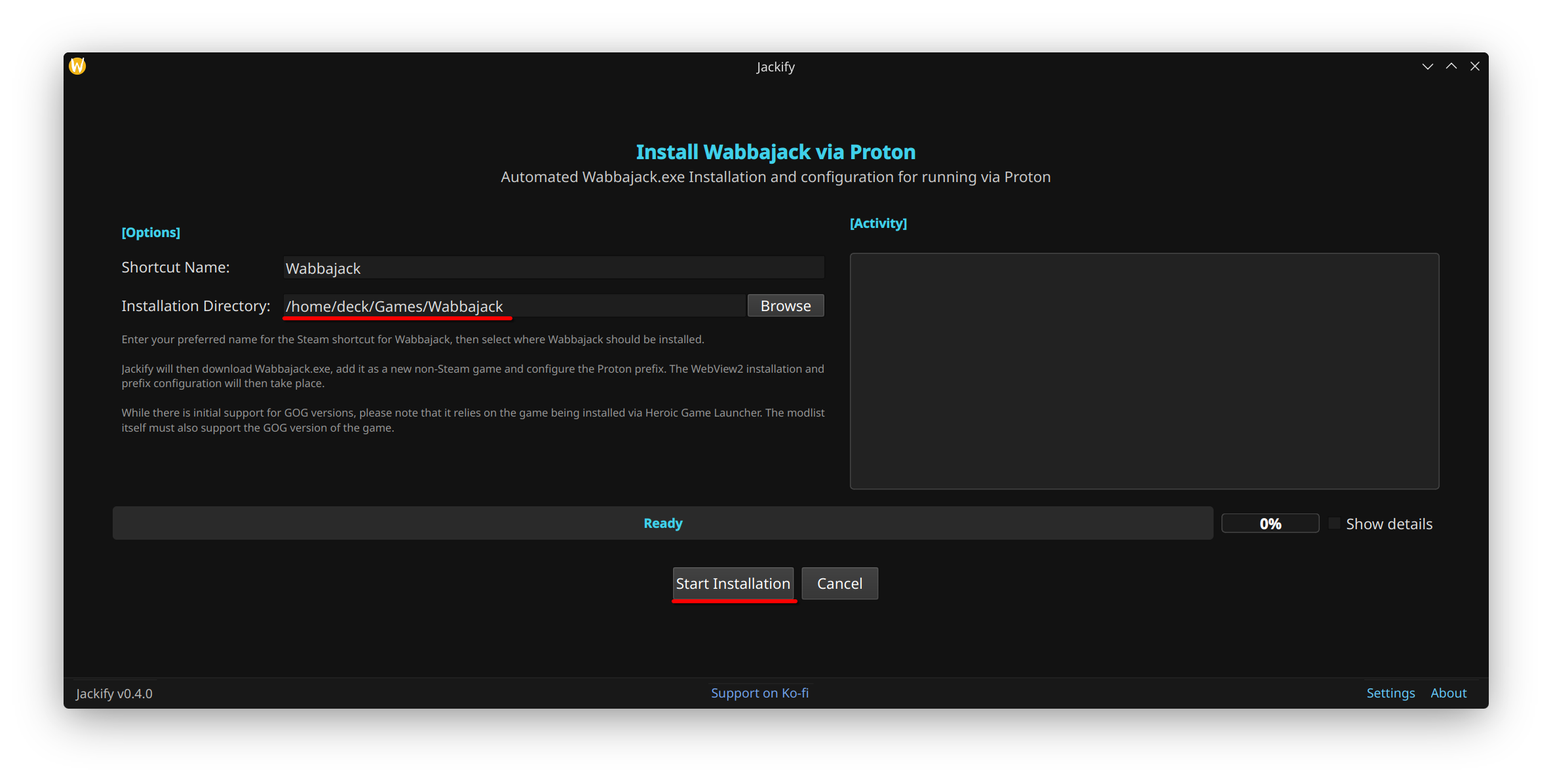
Screenshot: Wabbajack installer ready to start
Jackify will automatically:
- Download the latest Wabbajack.exe
- Create a Steam shortcut
- Initialise a Wine prefix with Proton
- Install WebView2 runtime (required for Nexus login and manual/Non-Premium archive downloads)
- Apply Proton-specific fixes
- Restart Steam to apply the shortcut
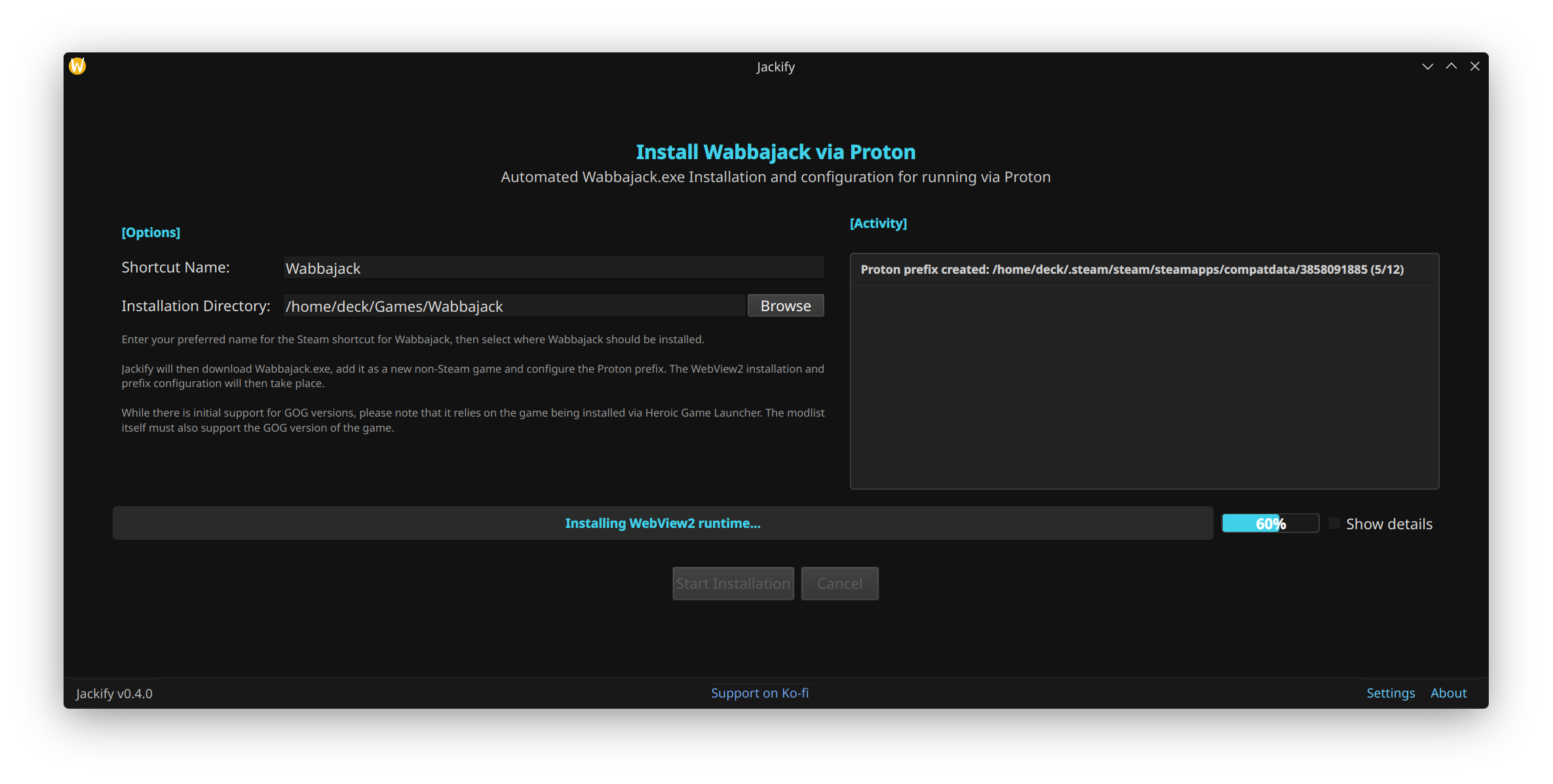
Screenshot: Wabbajack installation in progress
This process typically takes 2-5 minutes. Once complete, you'll see a success message.
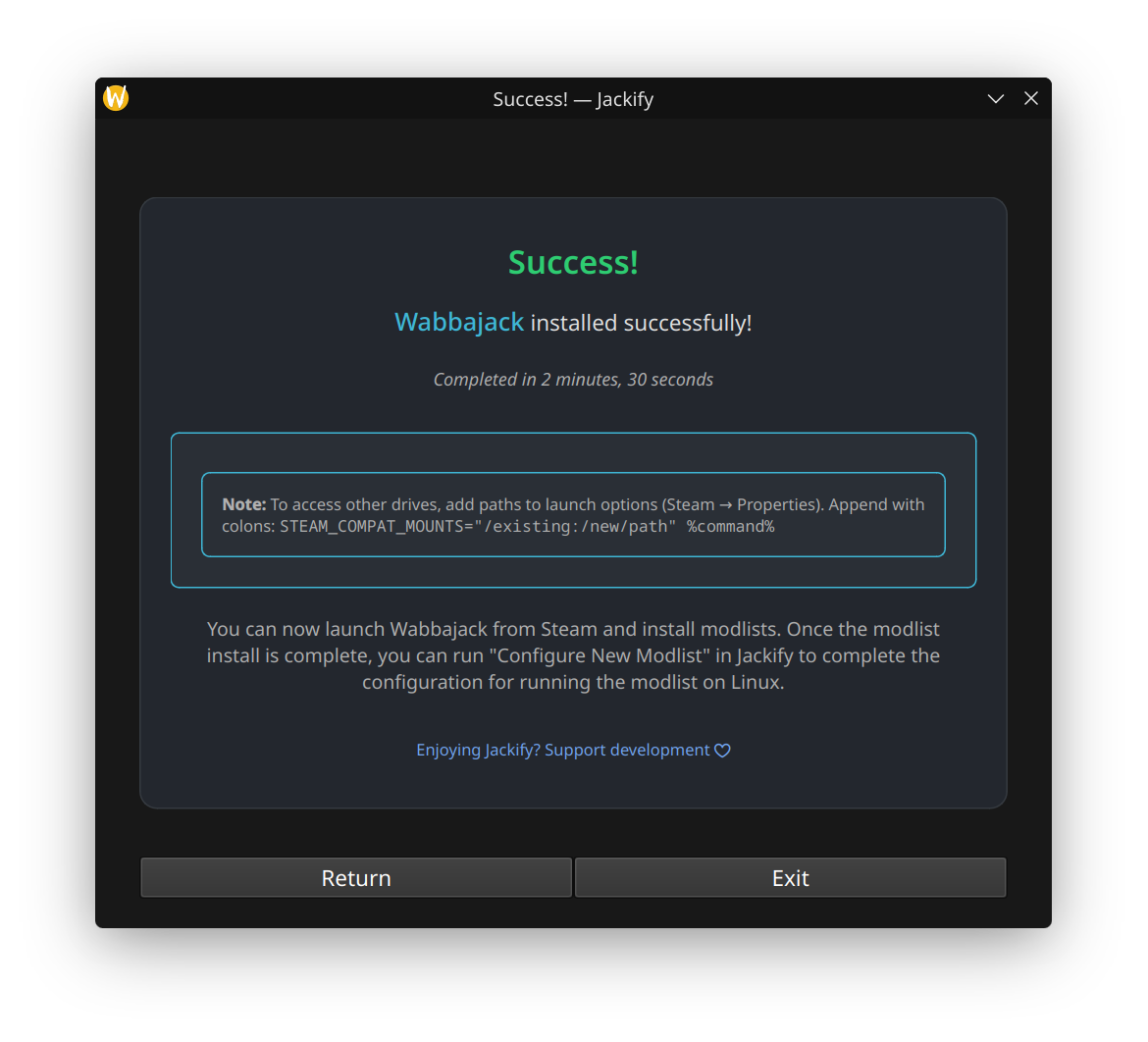
Screenshot: Wabbajack installation complete
Step 3: Launch Wabbajack and Log In
- Open Steam and find "Wabbajack" in your library
- Click Play to launch Wabbajack
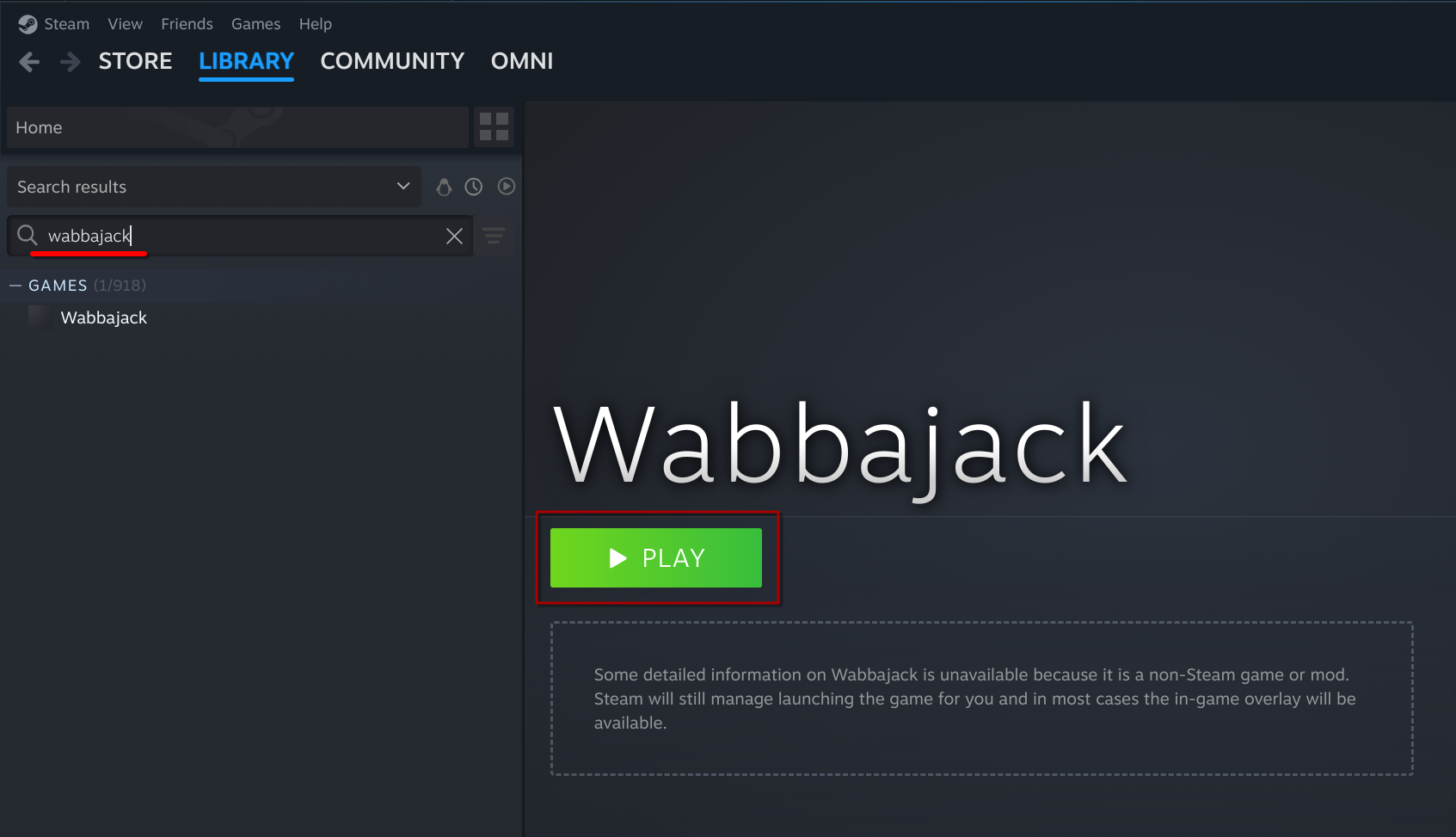
Screenshot: Wabbajack in Steam library
On first launch, Wabbajack will download and install the latest version — this may take a few minutes.
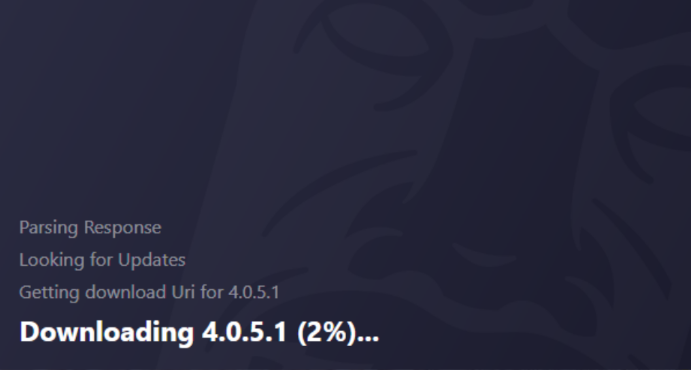
Screenshot: Wabbajack downloading on first launch
- Once Wabbajack opens, click the settings/gear icon in the bottom left
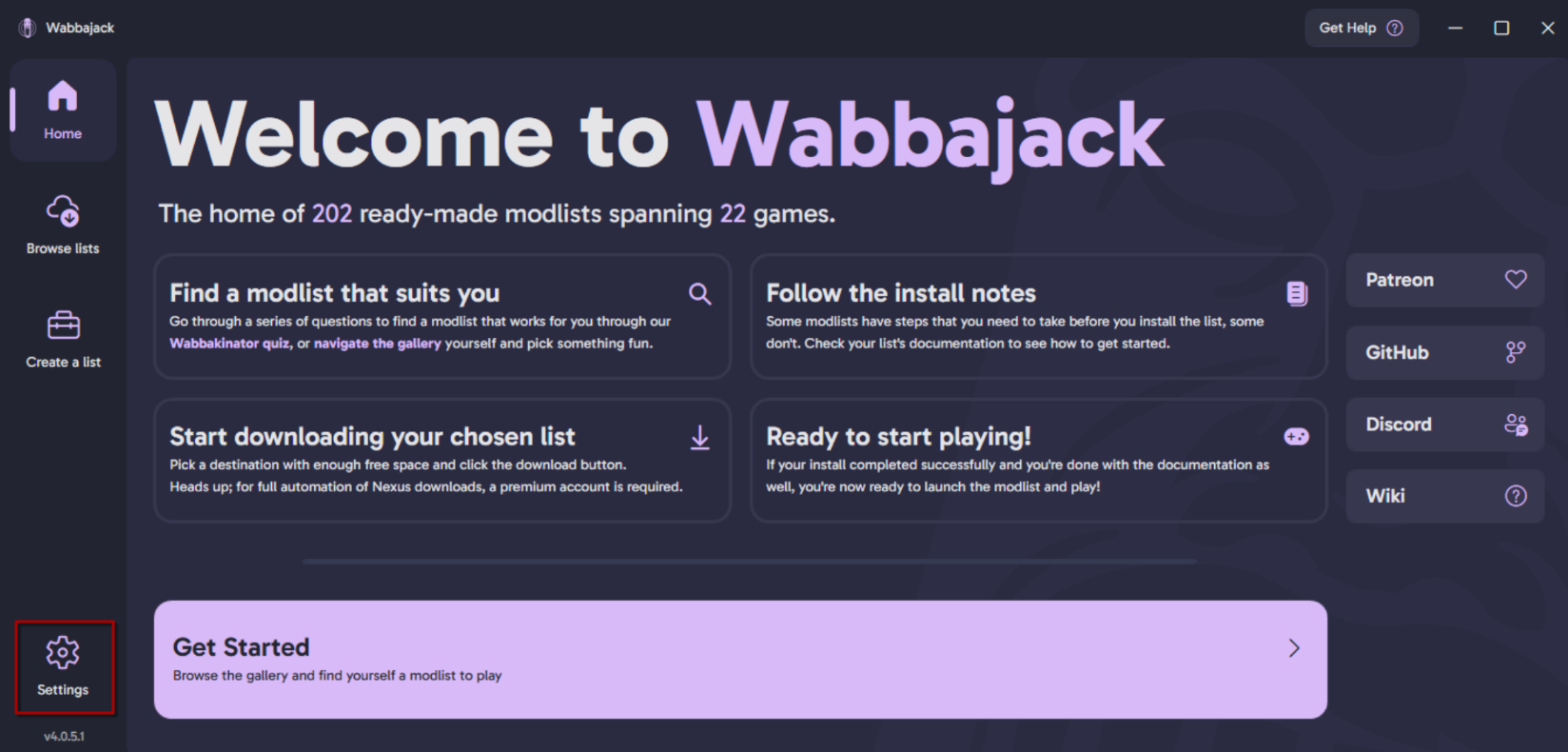
Screenshot: Wabbajack main screen — settings button location
- Click "Login" to authenticate with Nexus Mods and complete the login process
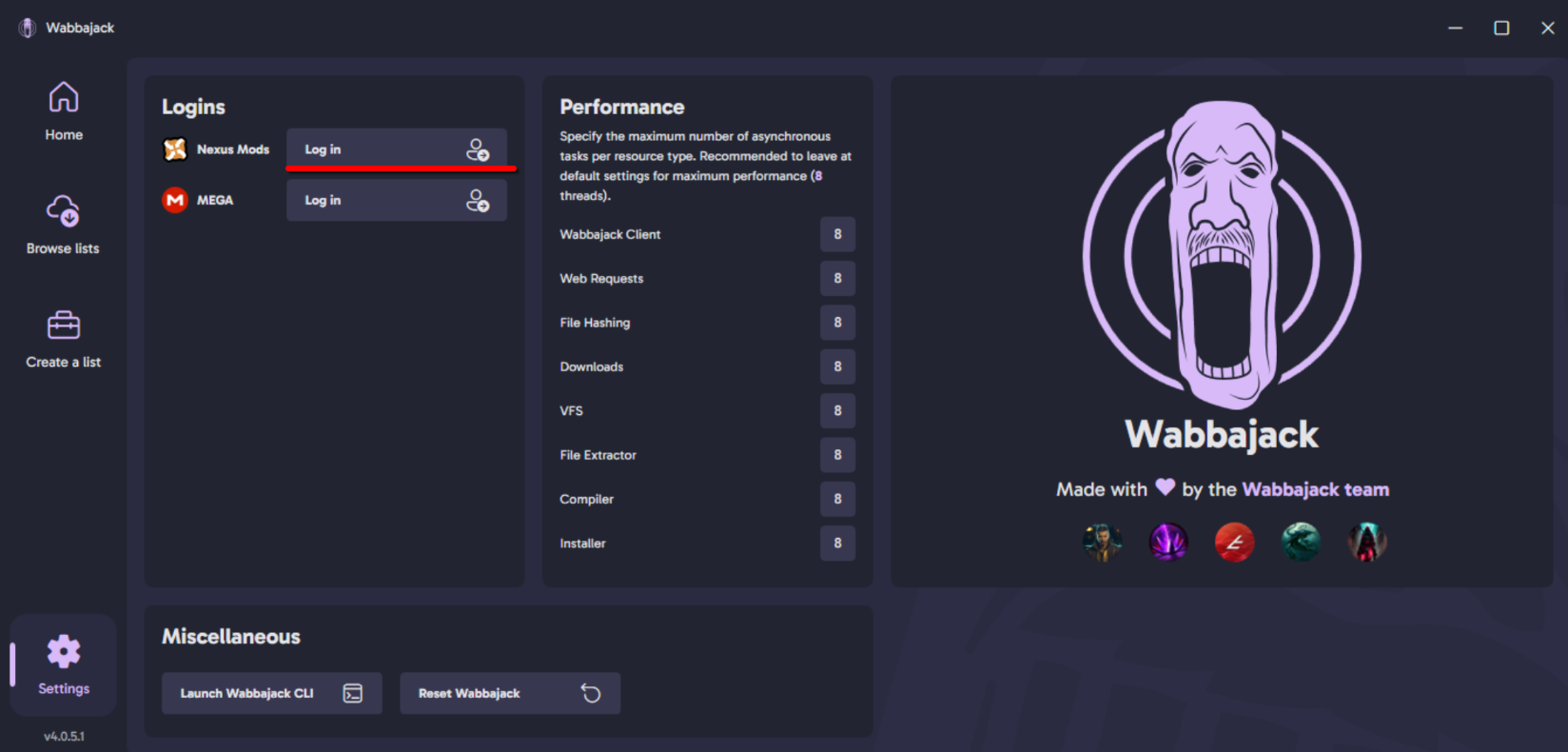
Screenshot: Wabbajack settings — Nexus Mods login
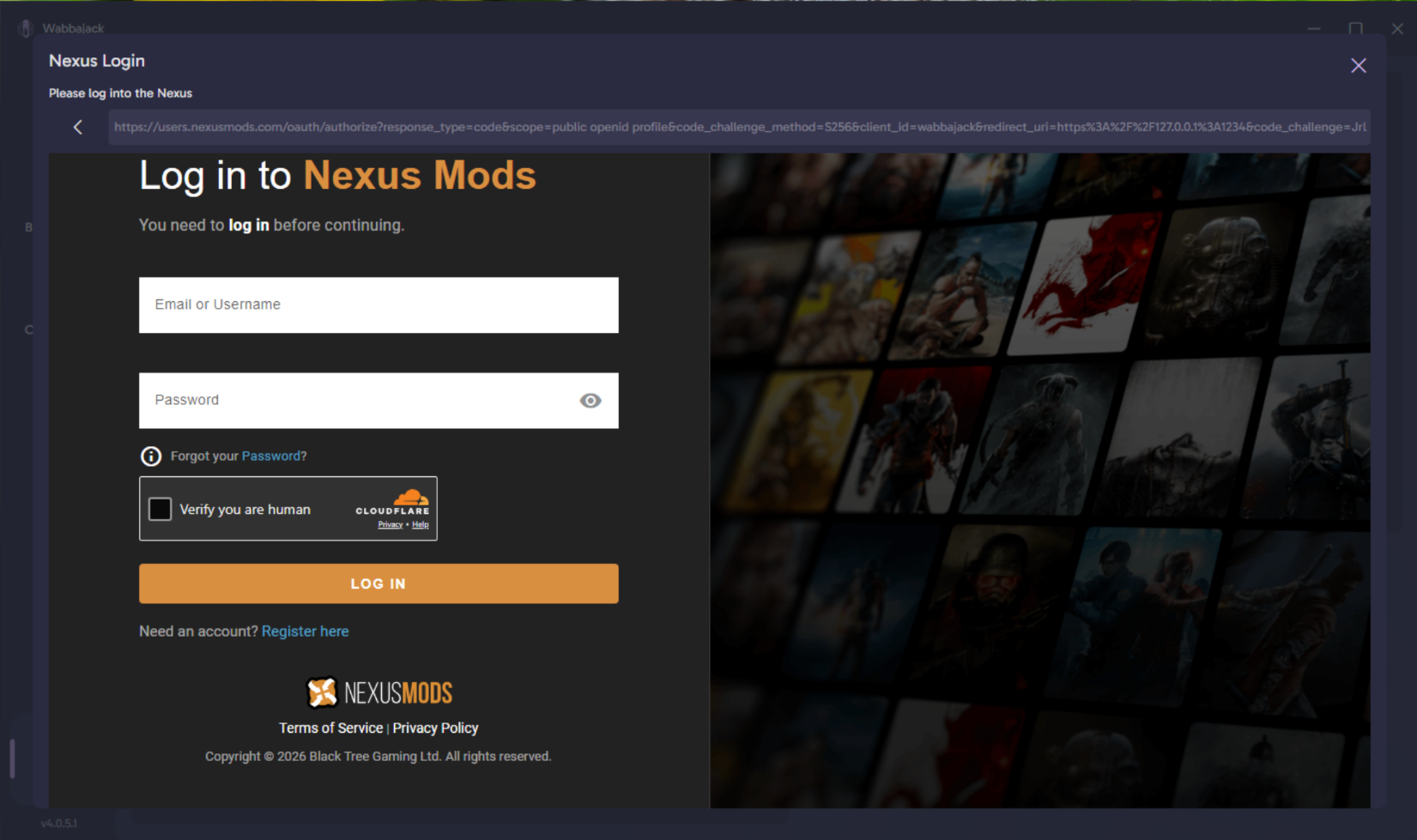
Screenshot: Nexus Mods OAuth login page
Warning
The Nexus login screen can appear black on Linux/SteamOS. If this happens: close Wabbajack, remove it from Steam, re-run the Install Wabbajack workflow in Jackify, and try again. If problems persist, ask for help on Discord.
Step 4: Select Your Modlist
- In Wabbajack, navigate to the Modlist Gallery
- Find your modlist — some modlists require ticking "Show Non-Featured Lists" to appear in the gallery
- Click on your modlist to view details, then click "Download and Install"
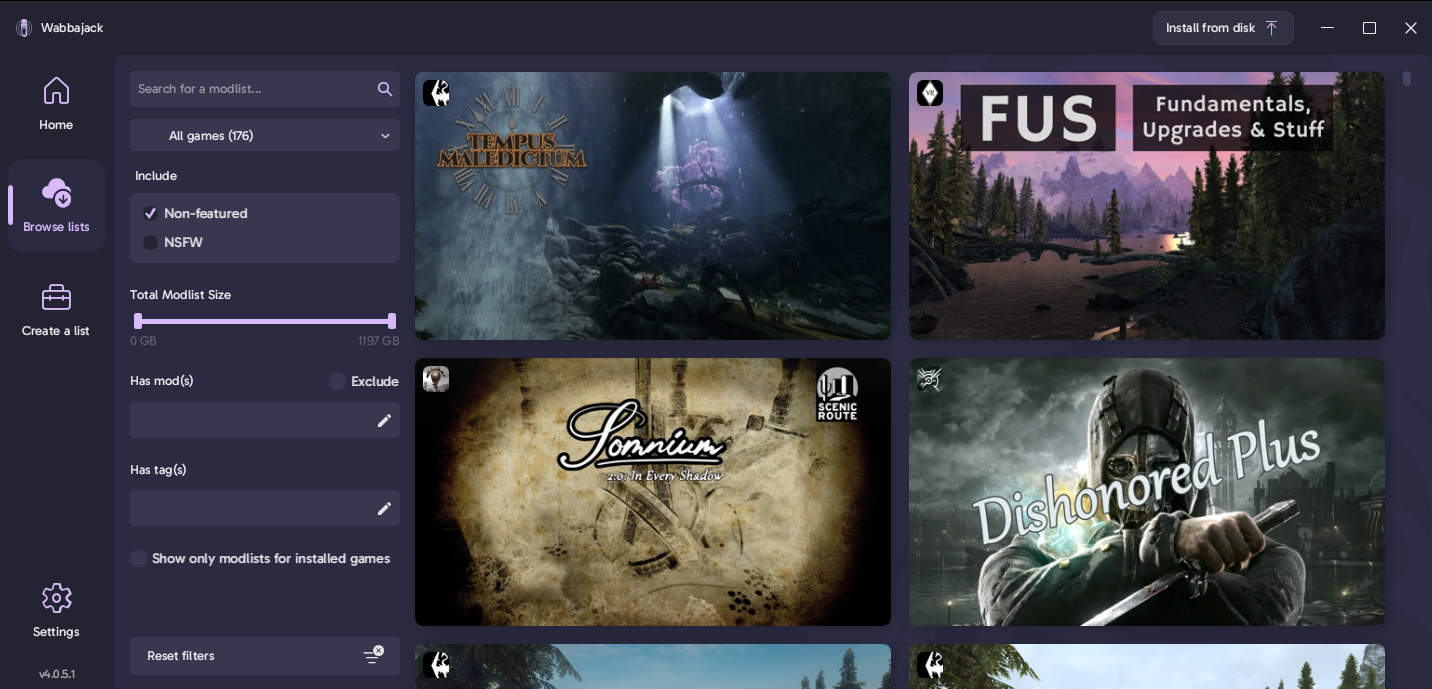
Screenshot: Wabbajack gallery — Tuxborn shown as example; tick "Show Non-Featured Lists" if your modlist doesn't appear
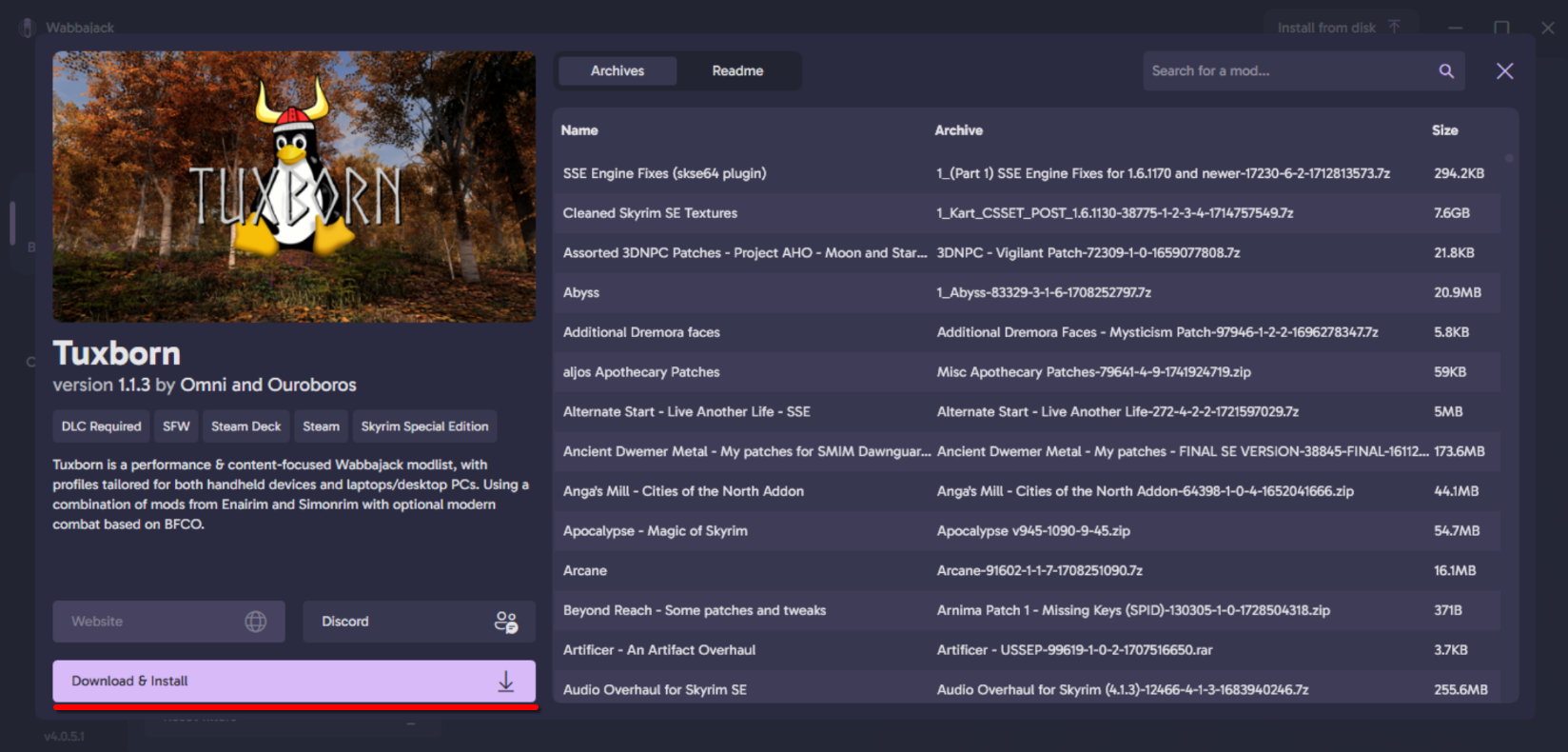
Screenshot: Modlist details card with Download and Install button
Step 5: Configure Installation Paths
Wabbajack running via Proton sees your Linux filesystem through the Z: drive. Convert your paths accordingly - DO NOT Install to the C: drive here, that will install the modlist inside the Wabbajack Prefix, which will not turn out well:
/home/deck/Games/Tuxborn→Z:\home\deck\Games\Tuxborn/run/media/deck/MySdCard/Games/Tuxborn→Z:\run\media\deck\MySdCard\Games\Tuxborn
To find your SD card name (Steam Deck users):
ls /run/media/deck/
Set both directories in Wabbajack:
- Installation Directory: where the modlist and Mod Organizer 2 will be installed
- Download Directory: where mod archives will be stored (can be deleted after installation)
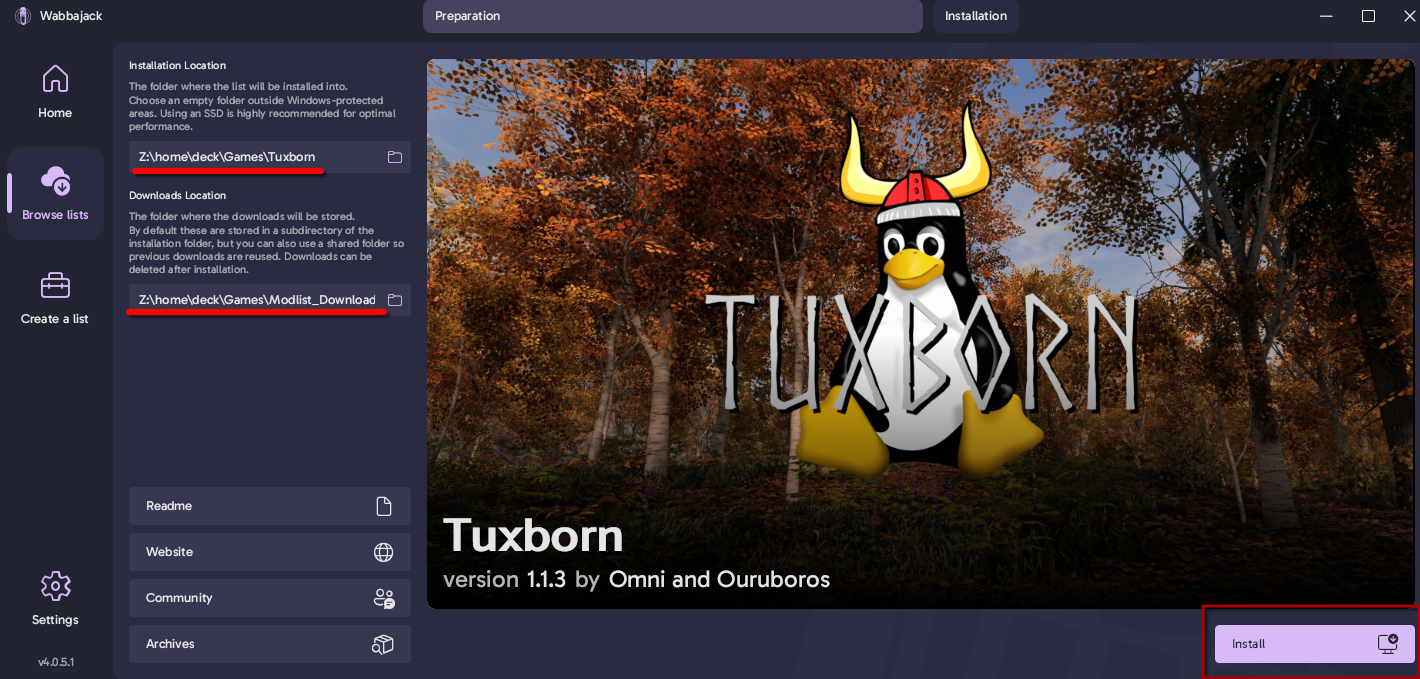
Screenshot: Wabbajack installation screen with Z: drive paths — Tuxborn shown as example
Step 6: Start Installation
- Review your paths and ensure you are logged in to Nexus Mods
- Click "Install" to begin
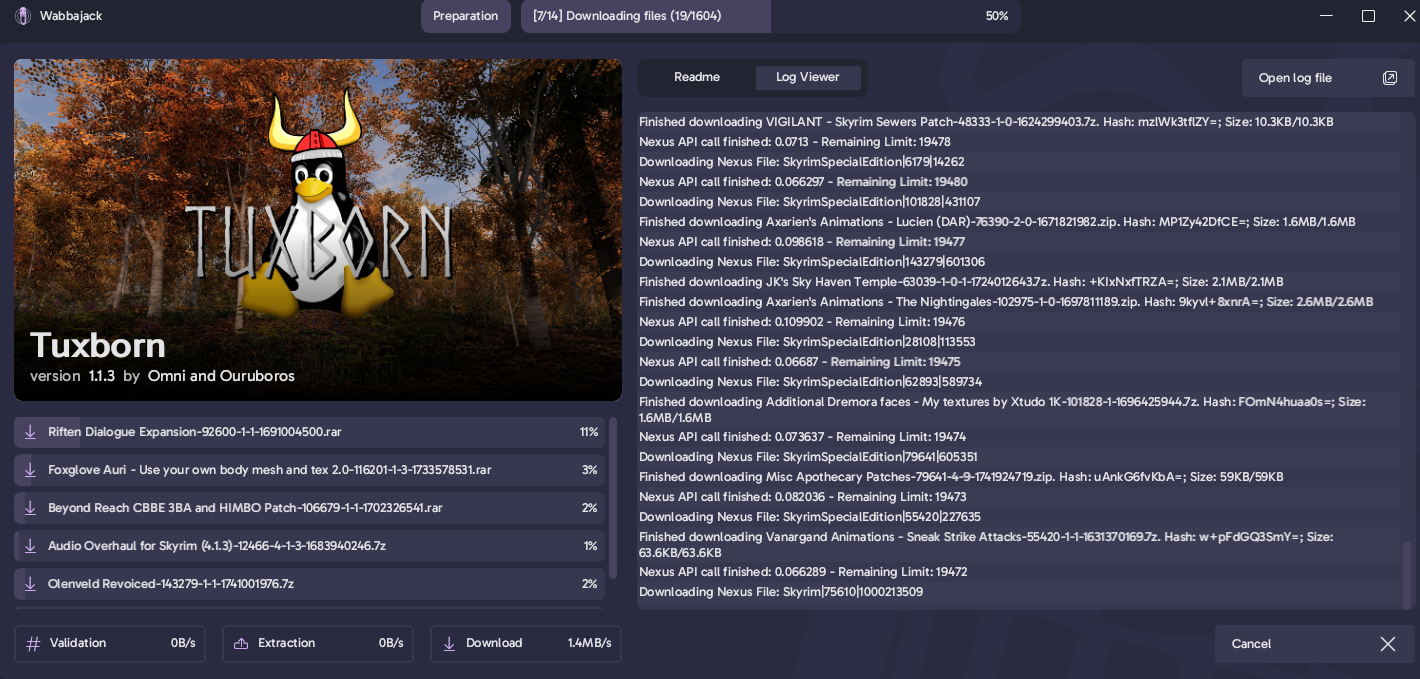
Screenshot: Wabbajack installation in progress
Non-Premium users: Wabbajack will pause at each mod requiring a manual download. Click the download button for each mod through the Nexus Mods interface and wait for it to complete before Wabbajack continues. This process can be very time-consuming for large modlists.
Installation is resumable — if Wabbajack crashes or is interrupted, restart it and point it at the same directories. It will resume from where it left off.
Step 7: Post-Install Configuration with Jackify
Once Wabbajack installation completes, run Jackify's post-install configuration. This handles Steam shortcut creation, Proton setup, and launch options automatically.
- Launch Jackify again and select "Modlist Tasks"
- Click "Configure New Modlist (Post-Download)"
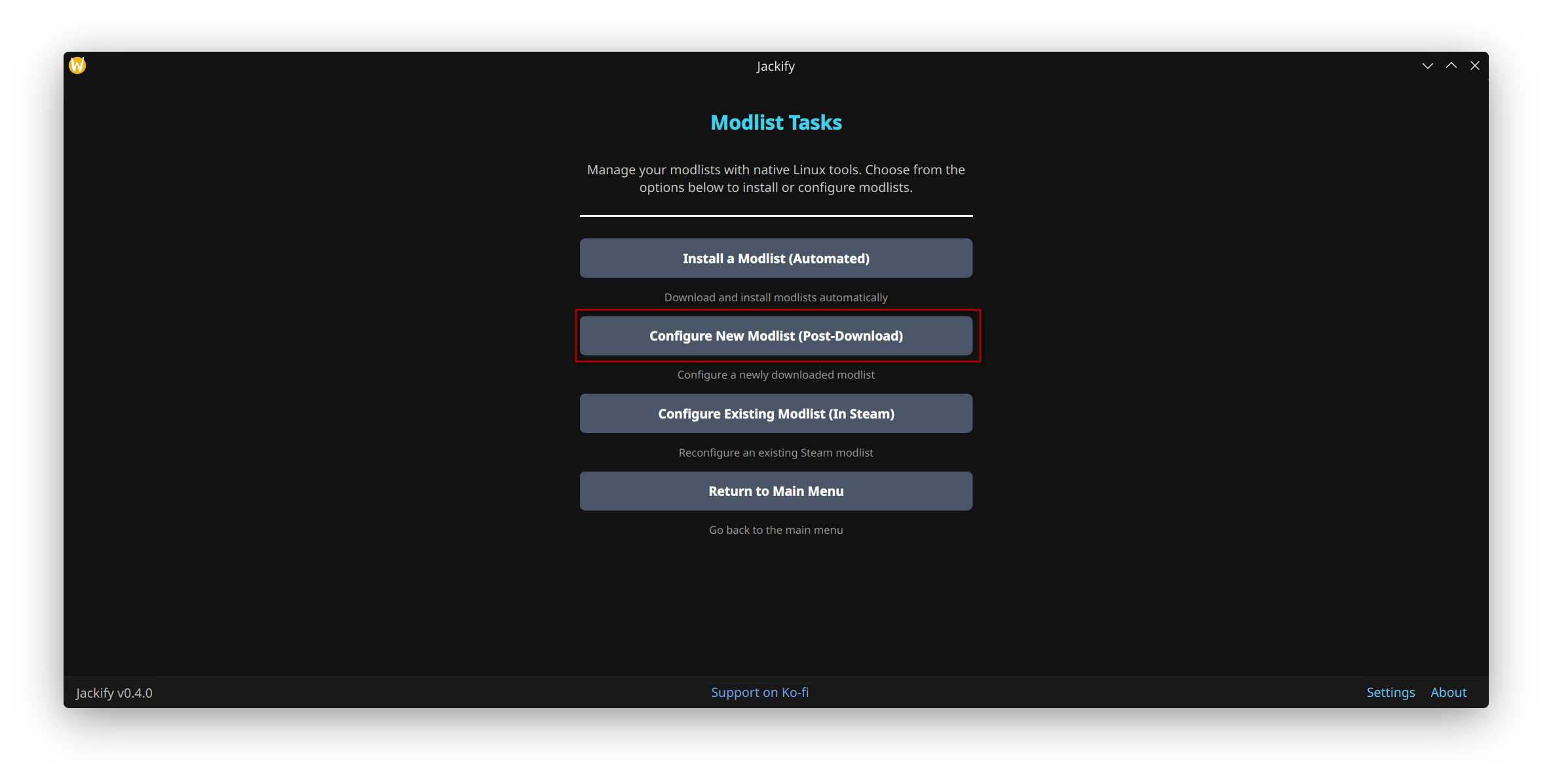
Screenshot: Modlist Tasks menu — Configure New Modlist option
- In the configuration screen:
- Name: enter your modlist name (e.g. "Tuxborn")
- ModOrganizer.exe Path: browse to and select the
ModOrganizer.exein your installation directory - Resolution: select your display resolution (1280x800 for Steam Deck)
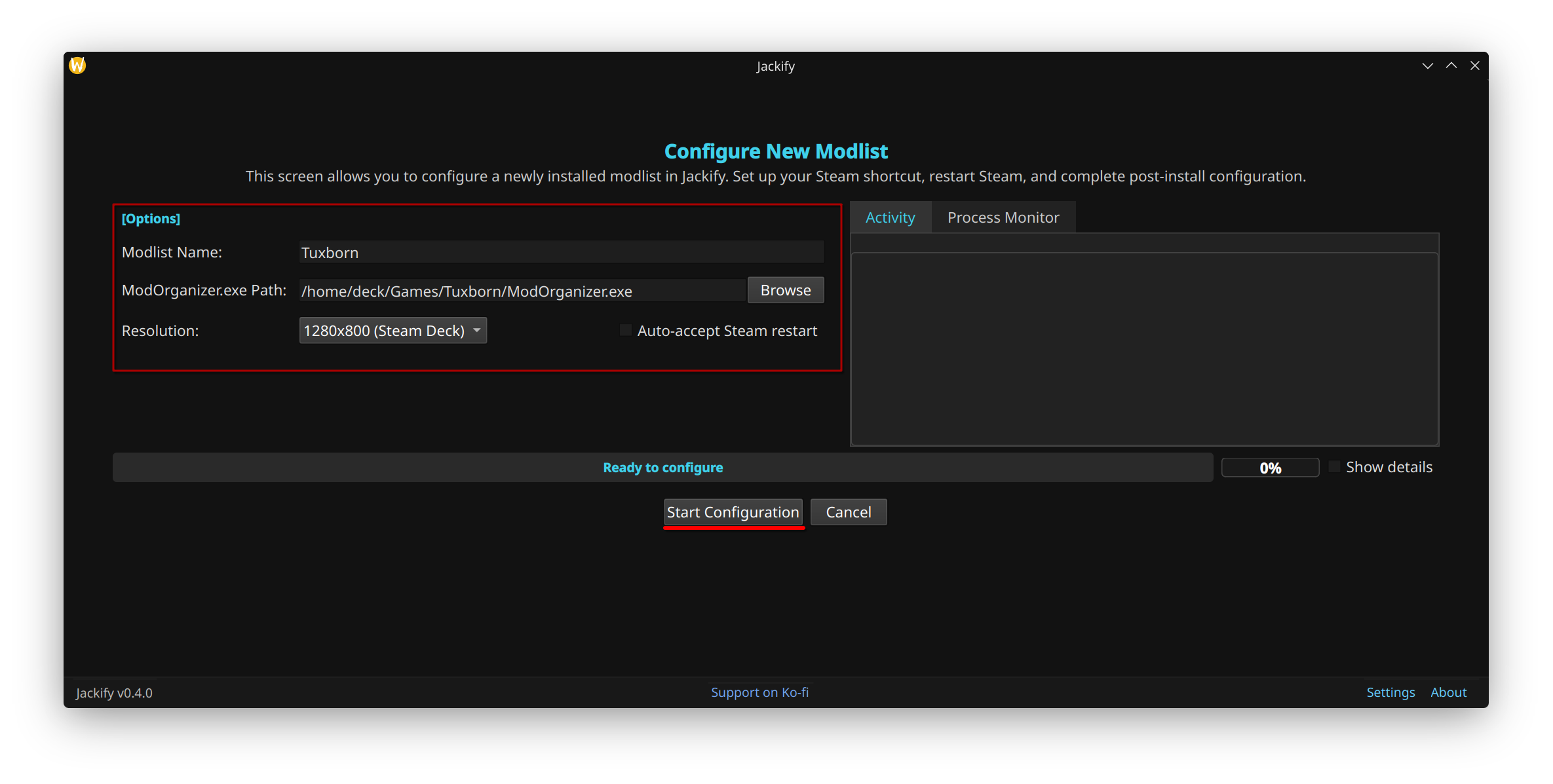
Screenshot: Configure New Modlist screen — Tuxborn shown as example
- Click "Start Configuration"
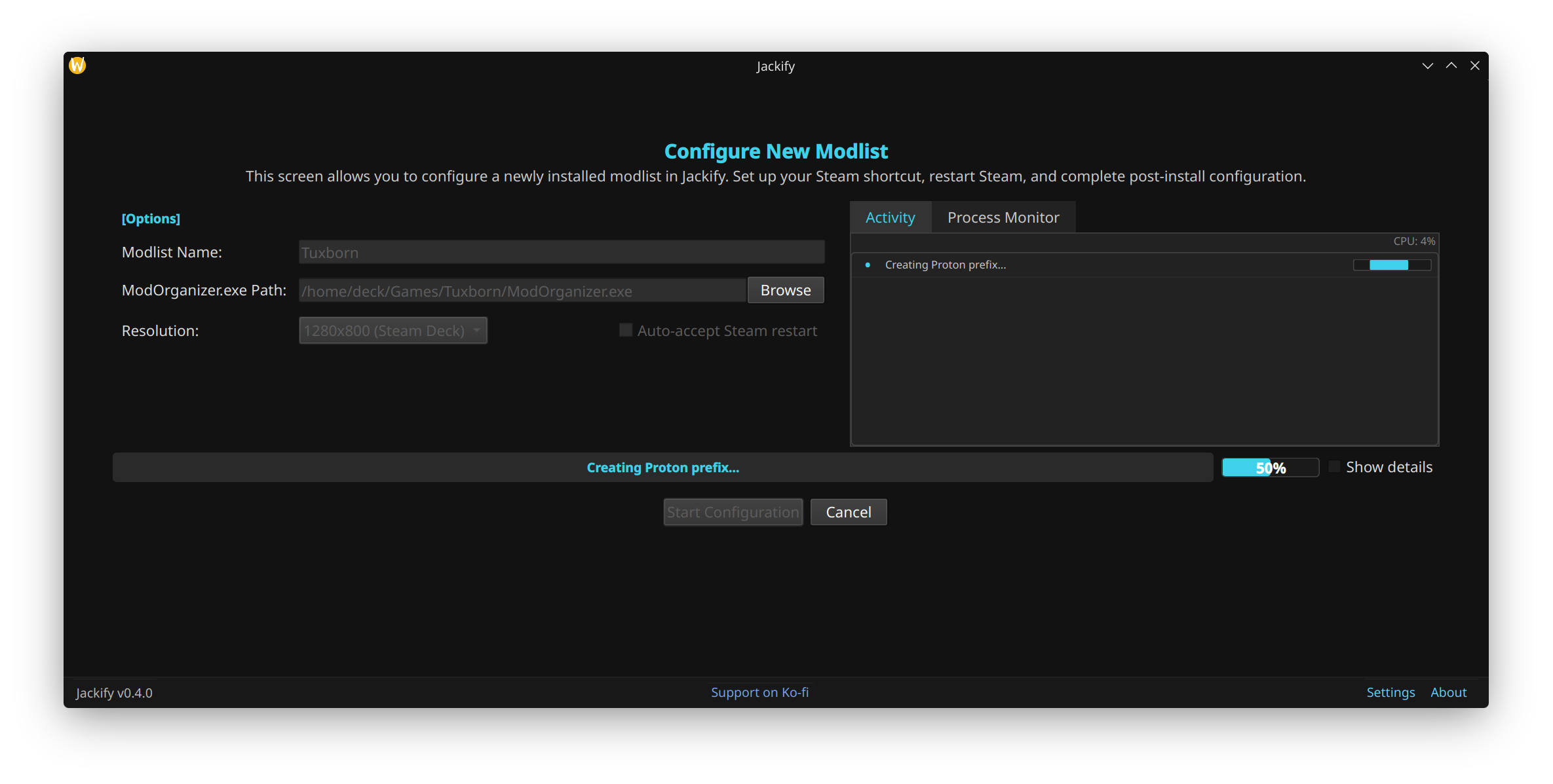
Screenshot: Configuration in progress
Jackify will automatically:
- Add the modlist to your Steam library
- Configure Proton settings
- Set up launch options
- Install any missing compatibility components
- Configure resolution settings
Steam Deck users: After configuration completes, reboot your Steam Deck, then return to Desktop Mode to launch Mod Organizer 2 for the first time.
Step 8: Launch and Play
- Open Steam — your modlist will appear in your library
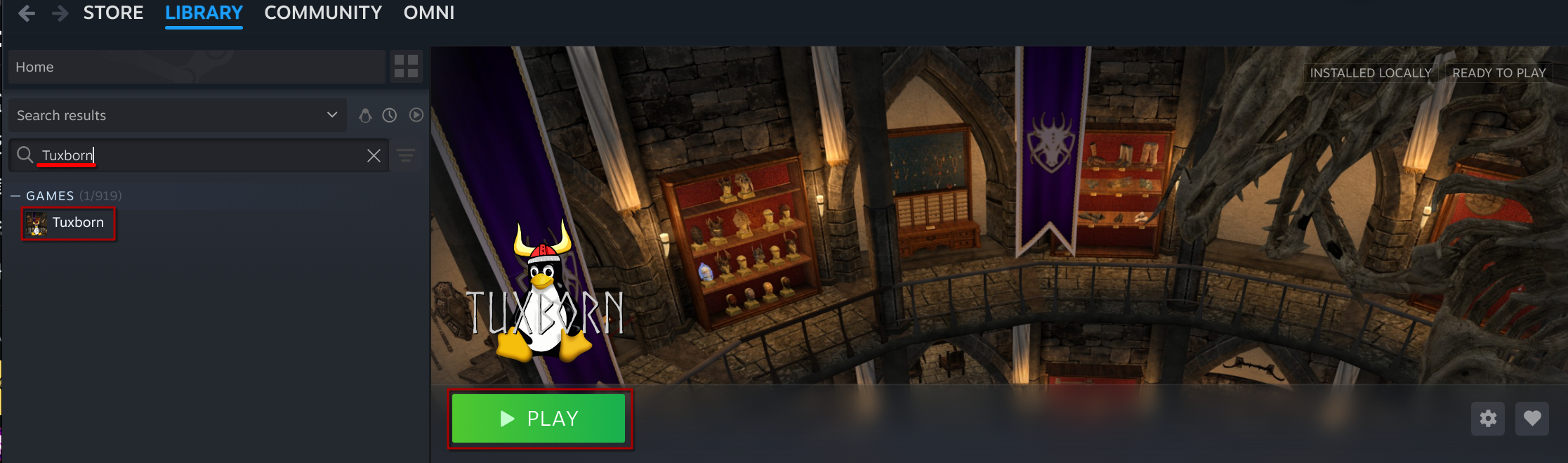
Screenshot: Modlist shortcut in Steam library — your modlist will appear here; Tuxborn shown as example
- Click Play — Mod Organizer 2 will launch
- In Mod Organizer 2, ensure your desired profile is selected in the left-hand dropdown at the top of the window
- In the right-hand dropdown next to the Run button, ensure the correct executable for your modlist is selected (this is usually the modlist name or the game launcher)
- Click Run to start the game

Screenshot: Mod Organizer 2 — profile dropdown (top left) and Run button (top right)
Warning
Shortly after clicking Run, an Unlock button will appear in Mod Organizer 2. Do not click it — doing so will break your modlist installation.
First Launch Expectations
The first launch will behave differently from subsequent ones:
- Long load times: Via Proton, initial load times are longer than on Windows. On Steam Deck this can be 7-8 minutes. This is normal and unfortunately not limited to just the first launch.
- Shader compilation: The game will compile shaders on first launch. This is a one-off process.
- Possible crashes: 1-2 crashes during the first few launches are normal while the shader cache builds. Relaunch and continue.
- Unusual colours on the main menu: Can occur during initial shader building and resolves once the game fully loads.
- Creations download prompt: Skyrim Modlists On Linux, the game may not recognise that Creation Club content is already installed and will prompt you to download it again. You do not need to re-download anything — dismiss the prompt with
EscapeorEnteron keyboard, or the back/dismiss button on a gamepad. - Character naming box: If you cannot type in the character name field on first launch, restart the game once more and try again.
Troubleshooting
Wabbajack won't launch:
- Ensure Proton Experimental is installed in Steam
- Try removing Wabbajack from Steam and re-running the Install Wabbajack workflow in Jackify
Nexus login fails / black screen:
- Close Wabbajack, remove from Steam, re-run the Install Wabbajack workflow, try again
- If still failing, ask for help on Discord
Wabbajack crashes during installation:
- This is always possible — Wabbajack is not officially supported on Linux
- Restart Wabbajack and it will resume from where it left off
Installation fails on specific mods:
- Manually download the failing mod from Nexus Mods and place the archive in your download directory, then restart the installation
Installation fails with errors referencing ccbgssse037-curios (Skyrim modlists):
Bethesda distributes Rare Curios in two versions — one via Steam (uppercase filenames) and one via the in-game Creations menu (lowercase filenames). Wabbajack modlists require the lowercase version. To fix:
- Delete
ccBGSSSE037-Curios.bsaandccBGSSSE037-Curios.eslfrom your SkyrimDatafolder - Launch Skyrim Special Edition from Steam
- Go to Creations in the main menu
- Search for and download Rare Curios
- Wait until it shows as Installed, then close the game
- Retry the installation in Wabbajack
Need help:
- For modlist-specific issues, check the modlist's own Discord or support channels
- Report Jackify issues on GitHub Issues
- For Wabbajack issues on Linux, ask in #unofficial-linux-help on the Wabbajack Discord